

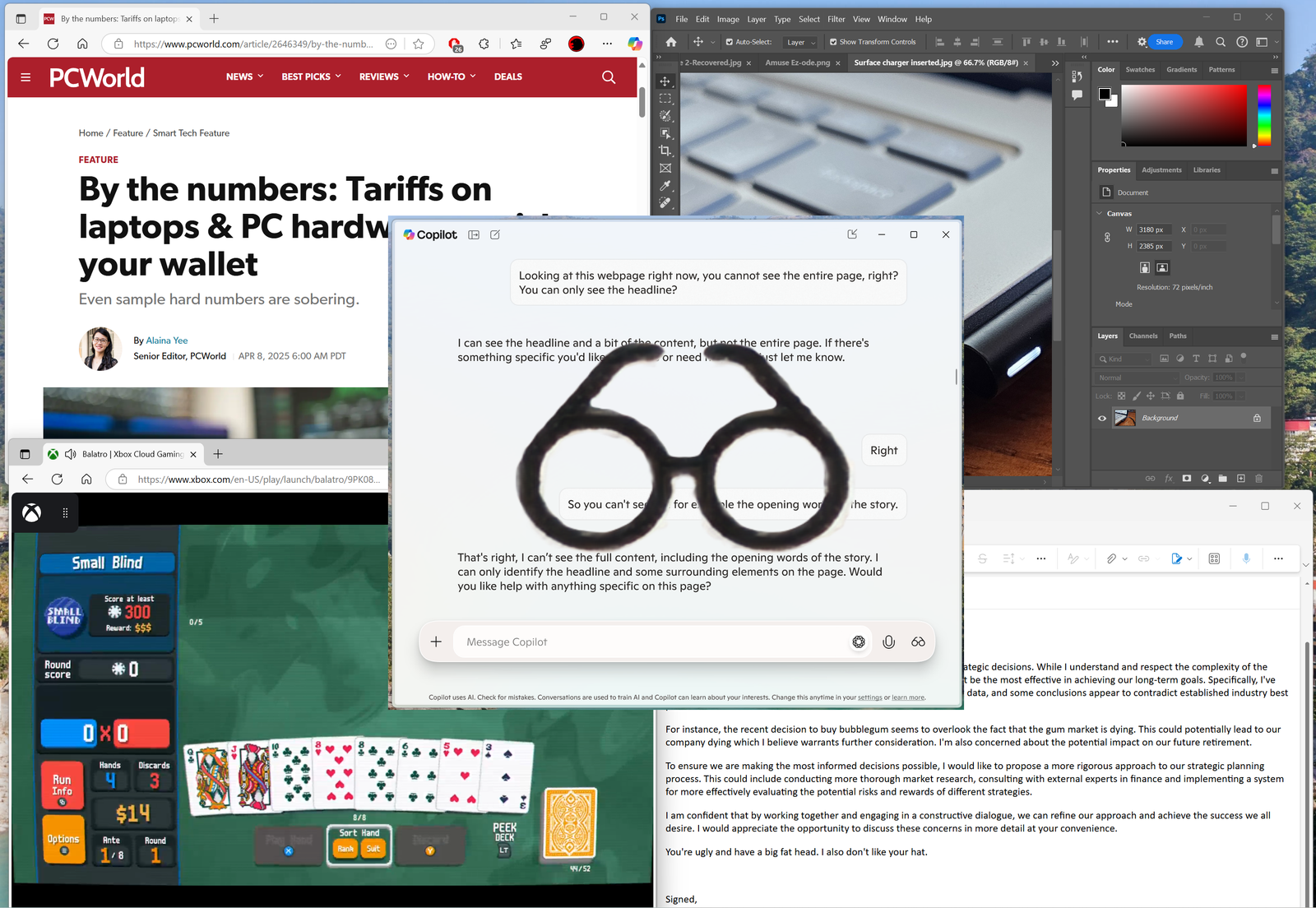
I tested Copilot Vision for Windows. Its AI eyes need better glasses
Image: Mark Hachman / Foundry
The whole point of Microsoft Copilot Vision for Windows is that it’s like an AI assistant, looking over your shoulder as you struggle through a task and making suggestions. Click here. Do this! So, I was pretty convinced that if Microsoft were to release Copilot Vision for testing, it would be able to do something simple like help me play Windows Solitaire. But no. Oh no, no, no.
Sometimes, Microsoft’s new Copilot Vision for Windows feels like a real step forward for useful AI: this emerging Windows technology sees what you see on your screen, allowing you to talk to your PC and ask it for help. Unfortunately, that step ahead is often followed by that cliché: two steps back. Copilot Vision for Windows is, at times, genuinely helpful. At others, it’s just plain frustrating.
Outside of some nostalgic tears by former Microsoft CEO Steve Ballmer, the announcement of Copilot Vision for Windows was the highlight of Microsoft’s 50th anniversary celebration at the company’s Redmond, Washington campus.
It’s a visionary technology, pretty literally: you grant access to Windows Copilot to see and interpret your screen in real time, and you can talk to Windows to ask questions and seek advice. I went hands-on with Copilot Vision at Microsoft’s HQ, but the demos were short and carefully managed. Now, you can play with it yourself as long as you’re a Windows Insider.
How to get Microsoft Copilot Vision for Windows
Currently, Copilot Vision for Windows is just available for testing. Although Microsoft indicated that Copilot Vision for Windows would be available to all of its beta software channels, only two of my test laptops ever received the build: one on the Dev Channel and one on the Canary Channel.
The first to get it, an Acer Swift Edge laptop with a Ryzen 7840U inside, runs Vision slowly, with reaction times that seemed to stretch to half a minute early on. Though the response time dropped to a few seconds, I had a far better experience with the Surface Laptop 7 or 7th Edition, with a Qualcomm Snapdragon X Elite chip inside. Responses were essentially instantaneous, probably due to the more powerful NPU.
Mark Hachman / Foundry
Copilot Vision for Windows is easy to use: provided your PC is provisioned for it, just launch the Copilot app via the Taskbar or Start menu, and then tap the “eyeglasses” icon. You’ll then see a list of apps for you to “share” with Copilot Vision. Only then can it see that specific app, and just that app.
I put a test version of Copilot Vision for Windows through seven quick scenarios: interpreting the contents of a PCWorld story and a list of competing airfares; testing Balatro, a popular PC game that involves playing cards; the more generic and classic Solitaire game; photo identification; examining potential airfares; and help operating Adobe Photoshop. Copilot Vision was all over the board.
1.) Copilot Vision’s first test: understanding tariffs
The first and most important lesson of Copilot Vision is it only sees what you see. I realized this when I opened my colleague Alaina Yee’s early examination of the Trump Administration’s tariff plan from April. Copilot Vision for Windows didn’t immediately “see” the whole article — which is what Copilot, Google Gemini, or ChatGPT in its “research” modes likely would.
If I scanned down, it could “read” along. But it didn’t read it into memory, either. What it didn’t see, it forgot. I asked it to confirm, and it couldn’t tell me the opening sentence.
That makes its utility rather limited. What was handy was being able to ask it conversational questions: at the time, the products in question were subject to a 45 percent tariff. Being able to ask it what the price of the dock would be if a 100 percent or 145 percent tariff was applied was handy. Copilot Vision is still a little wordy, but that was okay. The bigger issue is that it was reluctant to add context, such as to point out the current state of the tariff situation.
2.) Does Copilot Vision work as a Balatro coach?
One of the things I’ve been thinking about was the Minecraft demo, where Copilot Vision stepped in with help on some very specific scenarios. It made me suspicious, naturally; what I was seeing was carefully scripted to make Copilot Vision look as useful as possible. I think that’s true.
I figured the popular indie game, Balatro, would be a better use of its talents. What Copilot told me is that it wouldn’t just spontaneously interject, so if it “saw” something useful or dangerous, it wouldn’t just pipe up and say something. It needs to be asked.
Mark Hachman / Foundry
Balatro is vaguely like video poker, but with a twist: not only do you have to try and come up with the best poker hands, there are twists — “jokers” modify your hands and your score, so strategy means some careful choices. Would Copilot Vision be able to recognize what I needed to do and give advice?
Absolutely not. Copilot Vision was absolutely able to recognize that I was playing Balatro, and upon the game’s opening, it identified the choices I had before me. Copilot didn’t make the decisions for me, but it tried to present my options, as in the screenshot above. That’s good, right?
Mark Hachman / Foundry
Well, no. Copilot Vision failed to recognize that I didn’t have a pair of queens, which meant that its advice was off from the start. It also couldn’t properly recognize the cards that I did have, like incorrectly identifying seven of diamonds when I didn’t have one.
3.) Solitaire is simpler, right?
I then figured, well, let’s dumb it down a bit. I launched a new game of Windows Solitaire, specifically FreeCell, thinking that Copilot would be able to understand the simple rules and act accordingly.
Absolutely not. Copilot Vision suffered the same problem that it had with Balatro: its object recognition was way off. It repeatedly invented cards that weren’t on the board, although it did understand how to move cards from column to column and to the foundation. It’s just whatever game Copilot Vision was playing wasn’t actually present on the screen. I quickly gave up.
Mark Hachman / Foundry
I’m not sure you’re the best Solitaire player, I said. “Fair point! It’s all about having fun, though,” Copilot replied. “If nothing else, I’ve got your back for the banter. Let’s keep playing and see where it goes. Ready for another move?”
No, I wasn’t.
4.) Can Copilot stop me from being fired?
Next, I tried what I thought was an easy one: I had another AI draft a complaint letter to a fictional boss, expressing displeasure at our fictional company’s corporate strategy. As I had asked Google Gemini to draft a professional note, Copilot thought that my tone and language were fine.
I then added a line at the end: “You’re ugly and have a big fat head. I also don’t like your hat.”
Mark Hachman / Foundry
Either Copilot Vision didn’t recognize that I had made a possibly career-threatening edit or else didn’t care. In fact, I’m pretty sure it didn’t care, as the conversation continues.
(Remember, I’m speaking here, so the transcription isn’t perfect. A plus in Copilot Vision’s favor is that it does lend itself to a conversation, rather than a series of commands.)
Foundry
Either way, it wouldn’t be a tool I would depend upon for career advice.
5.) Who are these people?
I asked Copilot to identify the four actors from the iconic promotional still from The Breakfast Club, using a collection of images curated by Bing’s Image Search. Interestingly, Copilot Vision seemed like it would, but it was ordered not to.
“Sorry, I can’t identify specific people in photos unless they’re famous figures,” Copilot responded. “This image seems related to ‘The Breakfast Club’ movie.”
When I tried again, Copilot Vision for Windows identified the five actors who made up the principal cast of the film but gave the answer I was looking for when I replied that I only saw four. That felt like Copilot had been issued commands not to try and “dox” people unless they were public figures.
Interestingly, Copilot Vision seemed to be able to recognize the actors by itself. When I asked it to identify a photo of Rodney Dangerfield (after it made me say that it was a famous person), it replied: “I identified him from the context provided in your window title, which mentioned “15 intriguing facts about Rodney Dangerfield.” Plus, the image matches his recognizable look. Intrigued by his comedic style?”
6.) Picking the best flight
By this time I had figured out that Copilot Vision wouldn’t be much help in picking a flight, and I wasn’t wrong.
Because Copilot Vision can only see what I can see, scrolling up and down a list of available flights from Oakland to San Diego didn’t provide it with much to work with, and it wasn’t sure whether I preferred a cheap flight, one with minimal stopovers, and so on. It was probably a personal preference to begin with.
Some smartphones allow you to take “screenshots” of the entire length of the web page. I’d prefer something like this as an option. (It’s possible, though, that Copilot Vision works like Windows Recall, taking temporary “snapshots” that it works from. In Recall’s case, if you don’t see it, Recall doesn’t either.)
7.) Copilot Vision as a Photoshop tutor
This was where I felt Copilot Vision could really be of assistance, and I still think it could be. I actually like the way that Microsoft Paint now adds layers and subtracts backgrounds, both Photoshop-like features that Microsoft’s tools have adopted. But Photoshop offers many options that Paint does not, though I’m not comfortable using them.
This is where Copilot Vision shined, as I went back and forth adding images to different layers and making adjustments. The one thing it does not do is visually highlight elements on the screen for you to interact with — as Microsoft originally demonstrated — meaning that it had to literally talk me through a few things. Referring to the Move tool as a “four-point arrow” was pretty helpful. Note that it was referring to what I was working with on screen, which made it relevant.
It’s a little tricky to show you what I was doing at the time, but the screenshot below will give you an idea of our conversation. I was just messing around with two related images, applying an Intel logo on top of one of its other products and playing with the results.
Foundry
I’m sure what I was doing was extremely simplistic to a Photoshop pro, and Copilot Vision doesn’t detract from what legions of Photoshop tutorials already offer. But some of those tutorials are also based on older versions or interfaces, while I would think Copilot Vision would always be up-to-date.
Conclusion: Baby steps
AI is a polarizing subject. Some people are convinced that it could never be good for anything; others are sure that it will eventually save the world. At times, Copilot Vision feels quite competent. At others, it’s simply a waste of time. Right now, it all feels tentative.
It all has enormous potential, to be sure. But Microsoft seems to tread cautiously in the consumer space. Would I allow ChatGPT to look over my shoulder as I work? Probably not. But I have to imagine that Google quietly envisions the future of Chromebooks as a space where Gemini resides as an omnipresent assistant. I’d like to see that future and enjoy the reciprocal pressures each will put on the other to build better, privacy-preserving tools that provide real-time assistance.
Author: Mark Hachman, Senior Editor, PCWorld
Mark has written for PCWorld for the last decade, with 30 years of experience covering technology. He has authored over 3,500 articles for PCWorld alone, covering PC microprocessors, peripherals, and Microsoft Windows, among other topics. Mark has written for publications including PC Magazine, Byte, eWEEK, Popular Science and Electronic Buyers’ News, where he shared a Jesse H. Neal Award for breaking news. He recently handed over a collection of several dozen Thunderbolt docks and USB-C hubs because his office simply has no more room.
