

How to Set Up Your New iPhone (2025)
Welcome to your new Apple smartphone. Here’s how to get the most out of it right out of the box.
Photograph: Simon Hill
All products featured on WIRED are independently selected by our editors. However, we may receive compensation from retailers and/or from purchases of products through these links. Learn more.
Hey there, what a lovely new iPhone you have! Whichever one of the many iPhones in Apple’s lineup you snagged, the setup experience is nearly identical. Here’s how to set up a new iPhone properly to ensure a three- to five-year lifetime, give or take, of happiness. (Or just one, if you’re an annual upgrader.) Things always go more smoothly when you’re prepared, so make sure you have the following ready for the easiest possible setup:
- Your old phone (not essential, but it’s smart to have it handy)
- Your SIM card (not required for eSIM activation)
- Your Wi-Fi details
- Your Apple account details (you must have an Apple account to use an iPhone)
After you set up your device, check out our guides on cases—the Best iPhone 16 Cases, Best iPhone 15 Cases, Best iPhone 14 Cases, and Best iPhone 13 Cases—to protect your handset, and see our Best MagSafe Accessories guide to kit it out.
Updated September 2025: We’ve updated this guide to reflect iOS 26 and the iPhone 17 range.
First, Back Up Your Old Phone
Screenshot courtesy of Simon Hill
Start by backing up your old phone. If it’s an iPhone, this will make copying over your data easier. The simplest method is to back up to iCloud by going to Settings, scrolling down to iCloud, iCloud Backup, and then tapping Back Up Now. You can find alternative methods and more details in our guide on how to back up your iPhone. We also have a guide on how to back up your Android phone for folks switching from Android.
You can take advantage of Apple’s Quick Start feature for switching iPhones simply by enabling Bluetooth on your old iPhone and having it nearby when you turn the new one on. We have a guide on how to switch iPhones that goes into more depth and offers some alternative methods, but we also go into it below.
Setting Up Your New iPhone
Photograph: Simon Hill
Use the little metal SIM card tool to open your phone and stick your SIM card into your new iPhone. Skip this step if you are using an eSIM—iPhones in the US have been eSIM-only for several years, and more global iPhone models are ditching the physical SIM card.
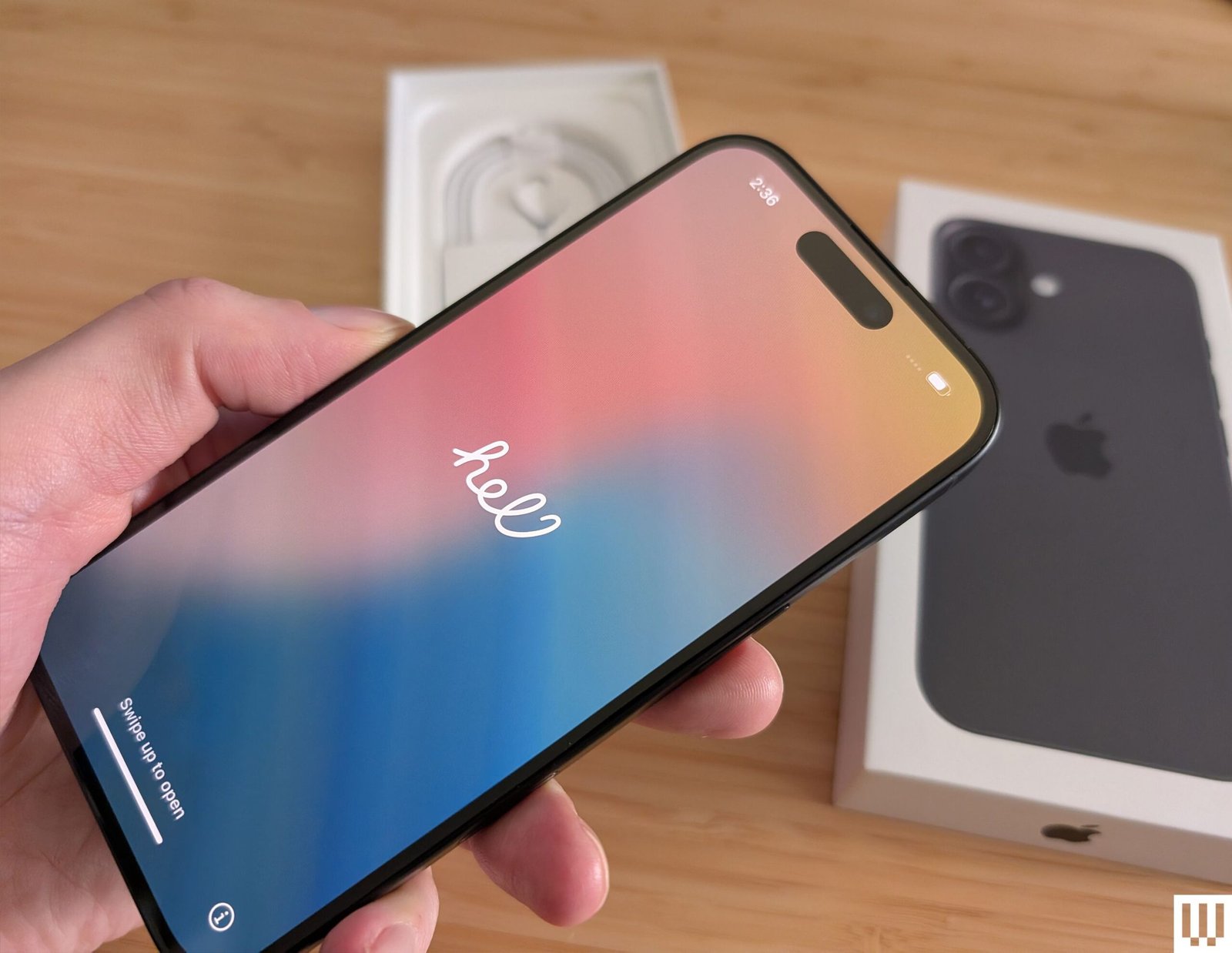
Hold down the power button to turn it on. You’ll be greeted by the Apple logo and the word “Hello” in many languages. Select your preferred Appearance to set text and icon size. You can then choose Quick Start (the easy way) or Set Up Manually (the hard way).
Quick Start
If you’re an Apple vet and have your old iPhone handy, try Quick Start for the fastest path to getting that new iPhone set up. Make sure your old iPhone is fully charged and Bluetooth is turned on, then bring your new iPhone close to your old one, and confirm that you want to use the same Apple ID on the new device.
An animation should appear on your new device; hover your old one over it until that image appears in your viewfinder. Wait until you see Set Up New iPhone on your old iPhone. Enter your password at the prompt, and you should see Finish on New iPhone. You can update the software, and you’re on your way to setting up Face ID. From there, you can choose exactly what you want to back up, and which settings—including for Apple Watch, if you have one—you want to carry over.
Photograph: Simon Hill
Alternatively, you can simply select Set Up Without Another Device, From iCloud Backup, or From Mac or PC. Then enter your Apple ID and password, and go grab a peppermint mocha while your iPhone restarts with all of your settings, preferences, apps, and more in place. In other words, it’ll be just like your old device, but … newer.
If you’re coming over from Android, download the Move to iOS Android app from Google Play. On the Transfer Your Apps & Data screen during the setup process for your new iPhone, tap From Android. Go back to your Android phone, open the app, tap Continue, and follow the instructions from there. You can’t transfer everything, but you can bring over your contacts, messages, photos and videos, calendars, and email accounts. Some apps will even make the jump. Just be aware that, depending on how much data you have, it can take a long time to move. Connect your iPhone and Android phone with a USB-C cable to transfer data faster.
Photograph: Simon Hill
Set Up Manually
If this is your first Apple rodeo, or you want a fresh start and like fiddling around in menus, select Set Up Manually. Follow the onscreen instructions to activate your iPhone or iPad. You will connect to your Wi-Fi network, activate your eSIM or pop your physical SIM into the new device, set up a six-digit passcode, set up Face ID, and restore or transfer your data and apps. You can choose to restore From iCloud Backup, From Another iPhone, From Mac or PC, From Android, or, if you want a clean slate, Don’t Transfer Anything. People coming from Android, remember you can use the Move to iOS app.
Next, you’ll sign in with your Apple ID, choose whether to turn on automatic updates, and set up features like your iCloud account, FaceTime, iMessage, and Location Services. You’ll also be asked if you want to set up Siri, which includes saying a few phrases so the assistant can get to know your voice. You can set up Screen Time, which tracks your device usage and lets you set limits.
Photograph: Simon Hill
Set Up Additional Features
Whichever path you choose, you’ll be prompted to set up a final few features, including Apple Pay, where you can add credit or debit cards, iPhone Analytics, if you want to share data with Apple, and Action Button customization (if your iPhone has one). You can also set up Apple Intelligence (if you have an iPhone 15 Pro or later) and Notification Summaries, and you’ll see info on how to use the camera, Siri, and Emergency SOS feature.
It sounds like a lot of decisions and inputs, but the process takes only a few minutes. Better yet, none of these choices are binding; you can find them all again later in the Settings app.
Photograph: Simon Hill
A Quick Word on eSIM
Apple has supported eSIM technology since the iPhone XS. It’s basically an electronic SIM card instead of the tiny, physical chip you insert into your phone for cellular connectivity. The iPhone 14 series was the first to completely get rid of the physical SIM card slot (in the US). That means the only way to set up a cellular connection in the US is with an eSIM.
If you’re unfamiliar with the process, don’t worry, it’s very easy. During setup, you’ll be asked if you want to transfer your number from your old iPhone. Once you agree, it will take a minute or two to activate cellular data on your new iPhone, and you’re good to go. Keep in mind that your old physical SIM card will effectively stop working once you do this.
If you’re coming from an Android phone (with or without eSIM support), you will need to scan a QR code provided by your carrier. This might even be the case with an iPhone if you’re having trouble—just contact your carrier, and they should be able to sort things out quickly. Some Android phones may support the easier eSIM transfer process, like Google’s Pixel 10 series.
Photograph: Simon Hill
Adding Other Accounts and Setting Preferences
Otherwise, it’s just a matter of personalizing your preferences. Want to add an email account? Go to Settings, Apps, Mail, Mail Accounts, and choose Add Account. Want to fine-tune which apps refresh in the background (and drain your battery in the process)? Head to Settings, General, Background App Refresh, and toggle your little heart out. Want to save time on web forms? Go to Settings, Apps, Safari, Autofill, and prefill your contact info. You can also turn on the battery percentage view by going to Settings, Battery, and toggling on Battery Percentage.
Screenshot courtesy of Simon Hill
Your new device will be running iOS 26, which boasts some important new features, but you might consider changing these privacy settings right away.
One last recommendation: Get rid of the clutter. You can delete any of Apple’s many, many stock apps you don’t want (including, of course, Stocks). Do it! It feels great, I promise. We even have tips on the key iPhone settings to change. Oh, and while you’re digging around in Apple’s software, go to Settings and then Focus to take advantage of the Do Not Disturb mode that lets you cut down on the constant stream of alerts.
Hitting these basics should get you started on the right path. When you’re settled, maybe look into Apple Shortcuts. And if you’re done with your old iPhone, read our instructions on how to factory-reset it.
Power up with unlimited access to WIRED. Get best-in-class reporting and exclusive subscriber content that’s too important to ignore. Subscribe Today.
