

You’re Missing Out If You Haven’t Tried These Google Maps Tricks
David Cameron/Getty Images
Most people use Google Maps to take them where they want to go, but if you’re limiting the times you open it to just directions, you’re missing out on some of the app’s most valuable features. Google Maps gives you a data-rich glimpse into the world around you. Along with navigation, you can use the app to find points of interest, information about local businesses, real-time traffic, and other helpful details — all in a way that’s tailored and personalized to your preferences.
Even with “basic” functions like getting directions, Google Maps gives you more than one way to use them. For instance, you can get directions based on your method of transportation, such as driving a car, taking a bus, or even walking on foot. It also gives you the option to save your favorite routes and destinations so you can embark on your journey faster. And while you could use other navigation apps, it’s hard to ignore just how much Google gives you in a single tool. Here’s a closer look at 10 cool Google Maps tricks that will help you get more out of the app, no matter where you want to go.
Star and save your favorite places
Ascentxmedia/Getty Images
Google Maps is a place of discovery. Whether you’re exploring a new city or searching for places in your hometown, you can find everything from restaurants and gas stations to grocery stores and attractions. And when you visit a cool place you want to remember, you can use Google Maps as your second brain.
You can star and save places you want to visit again. Open the app, then click in the search bar. Select More (with a three-dot menu beside it) to open additional options. You should see a box labeled “Starred places.” Tap this box, where you’ll see a list of places you’ve favorited over the years. If you have yet to use this feature, you’ll be able to add places directly in the feature. Google Maps may also suggest places based on your history. You can always remove places you’re no longer interested in by clicking the three dots next to each destination and selecting Remove Place.
Explore your travel timeline
Sergey Tinyakov/Getty Images
There’s another way Google captures the places you’ve been so you can refer back to them. The Timeline feature will automatically save routes to each of your signed-in devices. You’ll need to manually activate this feature, but once you do, it’s a hands-free way to retrace your steps. This feature comes in handy if you lose your phone or upgrade your device. You won’t lose all of your Google Maps data.
To opt in to Timelines, open the Google Maps app and click in the search bar. Choose the More menu option, then scroll down to find Timeline. You can also tap on your profile photo and find Your Timeline on the menu. It will show you whether you’ve opted in to save visits and routes and give you an option to review your settings. You’ll also need to turn on the option to back up your timeline data if you want it to sync across devices.
Save trips for one-touch navigation
Umar Sahidin/Shutterstock
If you want more control over the trips you save and not have Google automatically add them to your timeline, you can manually select specific trips. This feature is particularly useful if Google presents you with multiple route options, and you prefer one over another. This way, Google will send you to the same place using the same route, even when other options exist. It saves you from adjusting your preferences each time (e.g., avoid toll roads or highways).
To save specific routes on a selective basis, type in your destination and see the routes Google Maps provides. Highlight the one you prefer (if you have multiple options), then tap Save on the same row of buttons as Start and Add Stops. The next time you open the app, you can find your saved routes under Saved Trips. You can “unsave” routes by pulling up the route and tapping Saved, which will remove it from your saved list.
Use layers to plan your route
Unlike the traditional atlas, Google Maps offers a rich, detailed, interactive experience beyond an image filled with lines and street names. This includes various layered views that give you different information about the same area. For instance, you can choose a typical map view that shows basic streets, where different colors mean different things, like green for fields or forests and blue for bodies of water. Or, you can get a more realistic view with satellite imagery or even see various layers of terrain.
There’s a layer showing real-time traffic congestion so you can see where delays are or where traffic is flowing well. The biking layer is available in select cities and countries and shows dedicated biking lanes. It can also show which roads are bicycle-friendly. A public transit layer shows various public transportation routes. This might include bus lines, subways, or trams, for example. On the transit layer, you can click on various stations to get information about transportation schedules or other services. Other layers include an air quality indicator, wildfires, and street view, each of which may provide helpful tips for trip planning and more. To access layers, open Google Maps and tap the button with the diamond and “v” shape underneath.
Get instant information about local businesses
One of Google’s best features is its ability to tell you more about the places it’s sending you to. Whether you’re trying a new restaurant, shopping for clothes or home goods, or finding a reputable hospital, Google Maps is a helpful source for customer reviews, business hours, live crowd levels, and more.
Google Maps data varies based on the type of business or attraction. For example, a restaurant’s Google Maps listing might offer an average star rating, business hours, the distance from your location, a cost range, and online menus. A retail store might include most of these things, along with product listings and photos. Hotels might display current room rates and vacancies. Data like crowd levels and estimated cost ranges can help you make more informed decisions about where to go and avoid wasting your time. Anyone using Google Maps can contribute to growing this data, such as posting star ratings and reviews, sharing photos of the location, or noting issues with business hours or location data.
Find specific locations or amenities near you
Thx4stock/Getty Images
If you’re in dire need of an ATM, an electric vehicle charging station, or a hospital, Google Maps gives you a shortcut with no typing involved. When you open the app, you’ll see several common types of locations and amenities in the top bar. Tap the one you need and Google will show you all available locations near you. It displays each location on the map as well as gives you a list view. The list includes things like ratings and reviews, distance from your current location, the option to tap to call, and one-tap directions.
If you don’t see the amenity you’re looking for in the top menu, scroll all the way to the left and click More. This will give you a bigger list of categories. Drill down to specific types of broader categories to get better results. For example, if you’re hungry, you can select restaurants from the top menu, or go to More and choose a specific type of restaurant, such as ones that serve brunch or ones that offer takeout or delivery. This shortcut can save you time on typing and browsing, letting you skip right to what you need, when you need it.
Enable glanceable directions to save battery life
Timnewman/Getty Images
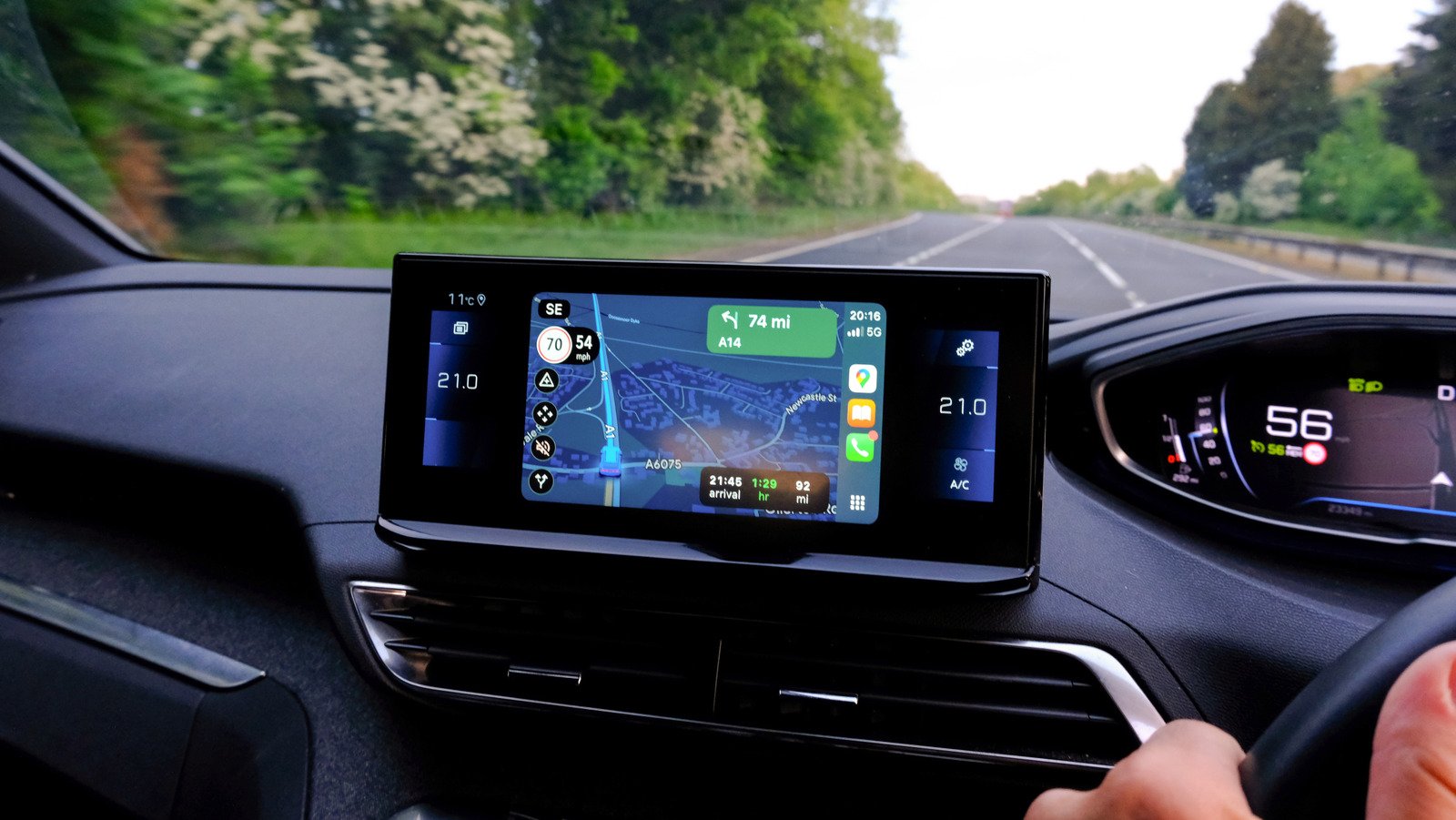
Lots of people use Google Maps on their phones to navigate while driving. It’s a much cheaper alternative to a standalone GPS or a car that has built-in GPS. But this convenience doesn’t come without a cost, namely in how it affects your phone’s battery. When you’re using Google Maps while driving, you might need to keep your phone plugged in at all times so your battery doesn’t die. But if other people need those same charging ports, there’s a way to have your cake and eat it, too.
Google Maps includes the option to use glanceable directions. Instead of having the map open on your screen at all times, you can view your route and estimated time of arrival on your phone’s lock screen. Just tap the phone to glance at the directions and preserve your battery life. To enable this feature, you’ll tap on your profile picture in the app, then go to Settings. Choose Navigation Settings, then enable glanceable directions while navigating. It’s a good idea to stay one turn ahead so you’re not constantly glancing at your lock screen.
Get a 3D view of your route in certain cities
Primakov/Shutterstock
Most people use Google Maps to get a bird’s eye view of their directions. They’re looking at the map like they’re flying overhead, with the ability to see surrounding streets and points of interest. But there’s another way to explore a route, at least in certain cities. Augmented reality has made its way to the Google Maps app. Instead of satellite imagery or basic map views, you can get a 3D view of the street you’re on.
This feature is available in big cities like New York, Amsterdam, London, Paris, Los Angeles, and Tokyo. To activate it, open the Google Maps app and tap the camera icon. You’ll hold your phone up so Google Maps can scan the location. From there, the app will display an overlay on your screen so you can see the restaurants, shops, and attractions around you. It’s an immersive view that helps you walk, ride, or bike your route as though the app is seeing things through your eyes.
Navigate indoor facilities like malls and airports
Google has used its own fleet of camera-laden vehicles to map millions of streets, highways, and alleyways around the world. It also uses satellites to help you get from Point A to Point B. But directions in the outside world aren’t its only strength. You can also use Google Maps to navigate to interior places, such as specific stores in malls or airports.
Not every mall or airport is a candidate. To see if your locale is one of the more than 10,000 that have been mapped, open the app and choose your desired destination (for example, the name of the mall, not the name of the store). Then open the Directory feature on the Google Maps listing. You’ll see all of the stores and destinations within the location. You can tap on the one you want to navigate to, and Google Maps will give you a guided walking path to get there.
Time travel with street view
If there’s one constant in life, it’s change. Places are constantly evolving, whether from new construction and upgrades or from storms ravaging areas and changing the landscape forever. But this secret Google Maps feature is hiding in plain sight. You can get a direct glimpse into these changes with its Street View feature. Given how much imagery Google has amassed over the years, it’s making this library available to its users.
For example, you can use the app to look back at your childhood home to see how it’s changed year after year. Or you can “go back in time” to see some of your favorite places that no longer exist. To find this archive of street view images, open the app and enter an address or location. View the area using Street View (found on the Layers menu), then tap a street to view the area from the street level. At the bottom of the screen, you’ll see information about the area you’re searching in, including See More Dates. Tapping this will allow you to choose past dates to view that area. Compare before and after shots to see just how different life looks today. It’s the next best thing to time travel.
