

5 Raspberry Pi Projects That Can Replace Your Expensive Subscriptions
Lenorko/Shutterstock
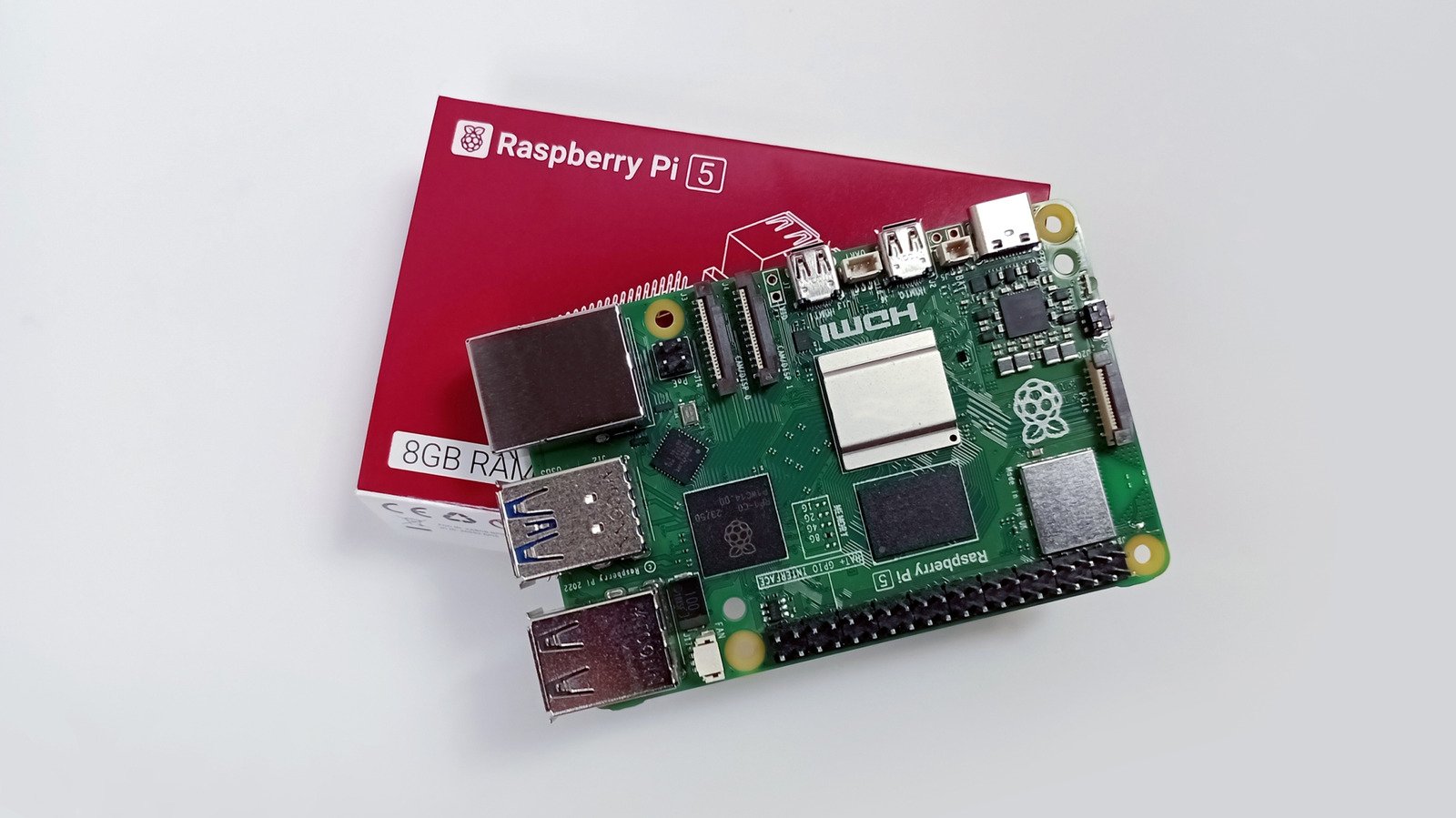
Subscriptions, subscriptions, subscriptions. It was bad enough when your video streaming app, music app, and VPN required one. Now you’ve got subscriptions for shaving razors, dog toys, and beef jerky — no, none of those are a joke. Luckily, all it takes is a current Raspberry Pi model to replace some of the digital subscriptions you may be paying for. Sure, Adobe Creative Cloud probably isn’t going away anytime soon, but we’ve shown in the past easy Raspberry Pi projects that can do things as complex as become music players, Minecraft servers, and remote control toys.
There are a thousand ways you could approach these five types of project using a Raspberry Pi, but if you do it right, each one could cut down on the subscriptions you’re stuck paying for. Dozens of people online provide guides on how they made their own specific version, and their approach may give you additional inspiration on what you want to achieve. We’re just here to point you in the right direction.
TV streaming box
With changes likely coming to Netflix and HBO Max, you might be feeling like it’s time to start streaming your own digital copies of movies and TV shows. Our favorite example of this is YouTuber Jeff Geerling’s creation of a TV streaming box using a 4GB Raspberry Pi 5. Jeff uses LibreELEC and Kodi for his own box, but there are other ways to do this; some have made their Raspberry Pi into an Android TV with Emteria OS. Setup for the LibreELEC version is relatively painless. Once you copy over your content, the device can automatically beautify your files with metadata and box art thereafter.
Despite being a device you can grab for as little as $45 (the 4GB model runs you $75) the Raspberry Pi 5 won’t struggle with full 4K, HDR content. You’ll have some limited access to AirPlay, and be able to access YouTube content as well, but running paid streaming services will depend on your implementation — then again, we’re trying to get rid of those, aren’t we? There are tons of options when it comes to how you control a Raspberry Pi streaming box, such as using HDMI-CEC with an existing remote, or remoting into the Pi from another device on the network.
This isn’t just a streaming box replacement, it’s a good replacement. You can keep tinkering with it for years, and it won’t stop working because software updates have been arbitrarily cut short. Compared to the cost of some streaming devices out there, it might even be cheaper, too, in addition to being ad-free and customizable.
Cloud storage
To be fair, cloud storage is among the cheapest subscriptions out there. You can get a full 2 TB for around $10 from Google, Apple, and others. However, using network attached storage (NAS) instead of cloud storage could be cheaper in the long run. A NAS is basically a mini home server with a bunch of high-capacity hard drives for your data. Jeff Geerling also has a video on building a NAS with the same Raspberry Pi 5 4GB model, plus some add-ons like the Radxa Penta SATA HAT for an extra $45. Depending on how much storage you go with, the entire project could be completed for only a few hundred dollars.
This project is not for the technologically faint of heart. Assembly is a bit more involved, as is setting up the NAS, but Jeff was able to get about 100 Mbps transfer speeds. It’s not as fast as a decent cloud storage service, but again, this is a Raspberry Pi. Someone who wants a more performant NAS (that’s still relatively affordable) might try the build from Linus Tech Tips. Linus uses the Friendly Elec CM3588, a Raspberry Pi-like NAS that starts at $109 and comes with four NVMe slots built in.
Bear in mind, using an NAS for cloud storage will be nowhere near as convenient as paying for it. You’ll be in charge of making sure your NAS is running, updated, and secure. Using it away from home could present some considerable challenges. And of course, you alone are responsible for your data. If something happens to your home — a break-in, flood, fire — you may have to say goodbye to all your irreplaceable files.
Password manager
Everyone needs to start using a password manager, but sadly many password managers now keep their best features behind a paywall. Even Bitwarden, the king of open-source password managers, charges $10 a year for its authenticator function. Your Raspberry Pi can replace it, for free, using (ironically) Bitwarden’s free self-hosted option. YouTuber censiCLICK shows you how, using the $40 Raspberry Pi 3 Model B Plus and Docker. If you’re not familiar with the Docker engine, it’s a virtual machine for running applications, in this case a Bitwarden server.
The video only goes for about 12 minutes and provides detailed, easy-to-follow instructions on how to get Bitwarden running. CensiCLICK demonstrates how to then set up Bitwarden on your browser extension and smartphone. The tutorial demonstrates how to configure certificates to ensure that all information stays encrypted and your passwords don’t become vulnerable when you’re syncing them over the web. Once all of that is done, it’s more or less a fire-and-forget solution. You can use the same Bitwarden extensions and apps to access your passwords, albeit now they’ll be syncing from your device, not Bitwarden’s servers.
Note, if you’ve already got a NAS — perhaps you built one with a Raspberry Pi 5 like Jeff Geerling — you could run Bitwarden on it alongside your cloud storage. Many people self-host password managers on their NAS to make the most out a server. Considering how cheap this particular build is, though, it would pay itself off after only a few years of usage.
Music streaming
Unfortunately, the affordable alternatives to giants like Spotify are close enough in price that it may feel like there’s no getting around the expense of music streaming — unless you turn a Raspberry Pi into a music streamer that plays your own music files. A home media server can handle music, movies, and TV shows. YouTuber TechWithDavid demonstrates how to do this with a Raspberry Pi 4 and Jellyfin. Once again, this is only one method for doing this. Other programs like Navidrome can facilitate music streaming over a Raspberry Pi.
Setup really doesn’t take that much time at all, and is easy for less tech savvy users. Upon testing his streaming device, TechWithDavid was able to load up videos quickly while at home. The great thing about using Jellyfin is that it’s supported on a wide variety of platforms, so your new music streaming service can work on your desktop, phone, or TV streamer box — it works with Jeff Geerling’s Kodi build, too, in case you were curious.
The challenge with a media server like Jellyfin is accessing it away from home. You’ll likely need to use a third-party solution such as Tailscale to listen to music when out and about. You’ll also have to transfer any new music you’ve purchased to the Raspberry Pi, barring some automatic solution that transfers the contents of a certain folder to the server and then updates it with Jellyfin. The same downsides as using NAS cloud storage will apply here, too: you’re fully responsible for whether or not your music streaming works. However, when this can be done on a $40 Raspberry Pi 4, those weaknesses become a lot more tolerable.
Game streaming
Cloud gaming with Amazon Luna, Nvidea GeForce, and Xbox already works great on devices with supported apps… but they’re only getting more expensive. Let’s suppose you own a capable gaming PC, and you want to stream games to your TV in the next room. The Raspberry Pi can help. YouTuber Core Electronics walks you through creating a Steam Link-capable Raspberry Pi.
Either a Raspberry Pi 5 or a Raspberry Pi 4 should work great, but Core Electronics notes that you won’t be able to stream above 1080p without the newer model. Setup and installation couldn’t be more straightforward. Install Raspberry Pi OS, then Steam Link over the terminal. If you intend for this to be a streaming device and nothing else, you can create a simple shell script that launches Steam Link whenever the Raspberry Pi turns on, so you can jump straight into gaming.
Based on Core Electronic’s own usage, the Raspberry Pi performs incredibly well with 1080p 60fps gaming over 5 Ghz Wi-Fi or ethernet, even on weaker routers. The only issue was connecting controllers; Core Electronics had to connect them directly over the Pi’s Bluetooth rather than directly through Steam Link. It’s worth mentioning that Steam Remote Play is not limited to just your home network. You can bring your Raspberry Pi streamer virtually anywhere in the world provided your gaming computer is on and the connection is good — but you will likely get extra latency the further away from home you get. There are other ways to pull this off without Steam Link. You could try using Moonlight Game Streaming, if you’d prefer a more customizable, open-source option.
