

The best iPad accessories for 2026
The best iPad accessories can make an aging tablet feel like new again, or give you additional ways to use that new slab you just bought. Whether it’s a slim folio case, an Apple Pencil, a docking station or a paper-like screen protector, there are so many iPad accessories out there that can transform how you use your tablet on a regular basis — and make your iPad last longer, too. We’ve tested a plethora of accessories over the years, and these are the best iPad accessories you can get right now.
Table of contents
Which iPad generation do you own?
Before you splurge on a bunch of accessories, you should double check which iPad generation you own. There are a couple of ways to do this: first, you can check the back of your tablet for its model number, which will start with an “A” and end with a series of numbers. You can also go into Settings on your iPad, then General and look up the model number in the top section. If you see a series of letters and numbers with a slash (“/“) in it, just tap that to reveal the iPad’s true model number.
The most important iPad details to consider before buying accessories are the charging port, screen size and Apple Pencil compatibility. Most iPads now have USB-C charging, save for the now discontinued 9th-gen iPad that still requires a Lightning cable. Make sure to double check your iPad’s screen size before buying a folio for iPad or a screen protector — especially if you have the new iPad Air 11-inch. As for the Apple Pencil, check out this guide to how to choose the right Apple Pencil (and even replacement pencil tips) to make sure you’re getting the right one for the tablet you have.
Best iPad accessories for 2026
iPad cases
Otterbox is an expert when it comes to protection, as seen with their phone cases, but its Symmetry Series 360 series shows that it has design chops, too. Symmetry cases look similar to the Apple’s Smart Cover, but the clear, scratch-resistant back is sturdy without adding a lot of weight to the iPad. Plus, the edge protection is substantial, so you won’t have to worry about damage from the inevitable, accidental bumps your tablet takes. I also like the extra flap Otterbox added that keeps the iPad screen cover closed and holds the second-generation Apple Pencil to the side of the iPad Pros. Symmetry Series 360 cases are available for most iPad models, and while they’re more expensive than some no-name iPad case you might find on Amazon, they’re worth it if you want a great balance of protection and style.
Speaking of cheaper iPad cases that fill up Amazon’s search result pages, some that are actually worthwhile are from Moko and ProCase. If you like the look and feel of Apple’s Smart Cover, but don’t want to drop $50-plus on one, both of these brands have dupes that give you that style at a fraction of the cost of the first-party option. — Valentina Palladino, Deputy Editor
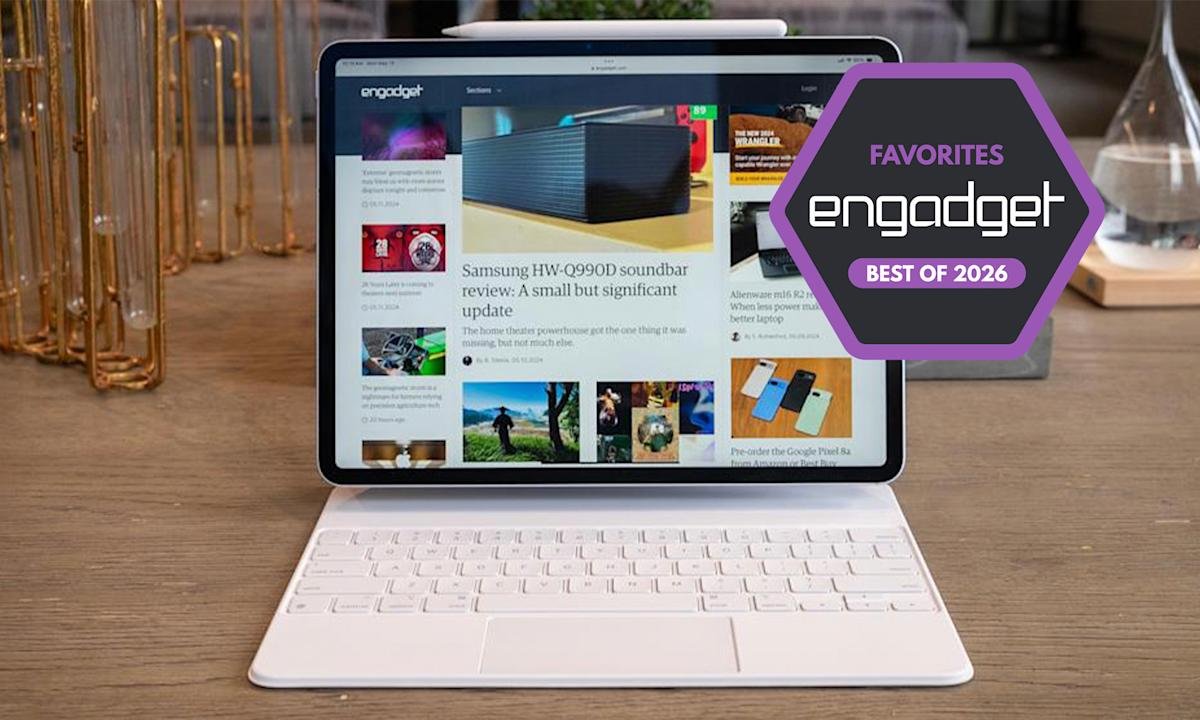
If you really want to indulge, Apple’s own Magic Keyboard is the way to go. This expensive keyboard folio magnetically attaches to the latest iPad Pros and keeps them “floating” above the keyboard and trackpad. We praised the Magic Keyboard for its typing comfort and precise trackpad, but dinged it for its limited range of motion. It’s easily the fanciest keyboard case available for the iPad and it’s one to consider if money is no object — or if you want the most stylish iPad keyboard money can buy. — V.P.
iPad stands and docks
Of the plethora of iPad stands I’ve used, Twelve South’s HoverBar Duo is the one that has come closest to perfect. The “duo” in the name refers to the fact that the gadget can either prop your iPad up using an arm attached to a weighted base, or the same arm just attached to a desk or table using its included clamp. The stand comes fully assembled on the weighted base, but it’s pretty easy to switch to the clamp thanks to the included instructions and basic tools in the box. If you spring for the latest model, it’ll be even easier thanks to a new quick-switch tab that lets you swap between the weighted base and the clamp attachment with any extra tools.
It wasn’t hard to secure my 11-inch iPad Pro in the vice-grip that is the HoverBar Duo’s tablet clip, although it did take some force to move the arm into the right position. That’s probably for the best because it showed how strong the arm is; it stayed in place without buckling, sliding down or otherwise breaking a sweat. I mostly used the HoverBar Duo with the clamp attachment, which allowed me to use my iPad Pro as a secondary screen while working. The included clamp should fit most desks and tables too, as it can accommodate surface thickness from 0.4 inch to 1.4 inches.
If you’re willing to sacrifice flexibility for something more elegant, Elago’s P2 stand for iPad may be a good fit. It’s made of a single piece of aluminum with a ledge for your iPad and a few well-placed cutouts that you can snake a charging cable through. The ledge is also wide enough to accommodate most iPad cases. It may not be foldable or adjustable, but its minimalist design will make it an attractive addition to your desk. — V.P.
Working at a computer can be a pain in the neck (literally), so I wanted a way to play with my iPad after work without having to lift my head off the couch. Sure, I could use my arms, but that gets tiring. This Tablift iPad holder looks a little funny, like some mech-spider attacking your chest, but it works exactly as I’d hoped. The adjustable legs are repositionable but quite sturdy once they’re in place, and three slots hold your tablet at different angles, including a forward-leaning one that’s particularly nice for lying down. It’s a little bulky, so I curl up the legs and store it under my couch. The slots and securing clip perform best if your device is naked, though I’ve been able to use it with a Smart Folio attached with little issue. — Amy Skorheim, Senior Reporter
If you plan on pushing your iPad Pro to its limits as a daily driver, you’ll probably need more than the tablet’s single USB-C port. Apple has provided little guidance to which USB-C hubs and adapters work best with the iPad Pros — there’s no MFi certification for accessories like this yet. Some hubs specifically advertise that they work with the newest iPad Pros, and if you want to be extra safe, I recommend buying one of those that comes from a reputable brand.
Satechi’s $100 Aluminum Stand and Hub is a favorite for its foldable design and how it packs ports and charging capabilities into a compact iPad accessory. The holder itself rotates outward, revealing a hidden, attached USB-C cable and a rubber bumper that keeps the stand in place in your desk. On the back edge are a 4K HDMI socket, one USB-A port, a headphone jack, both SD and microSD card slots and a 60W USB-C connection for charging.
I liked the versatility of Satechi’s hub. I could easily use it when I needed to prop my iPad up to watch a YouTube video, and by just plugging in the attached cable, I could switch to using my iPad as more of a work device with all of the necessary connectors in place. It’s also surprisingly light at 10 ounces. Combine that with its foldable design and you have a full-featured hub that can easily be stuffed in a bag. — V.P.
Not everyone needs, or wants, to spend $100 on a dock for their iPad. (If you’re using it as a laptop replacement, it’s worth the investment.) If you’d rather spend less, or just want something a bit more lightweight, Anker’s 7-in-1 USB-C hub is a good choice. It has most ports that you could ever want, with the only exception being an Ethernet jack. The slim dongle houses two USB-A ports, two USB-C connections, SD and microSD card slots and a 4K/30Hz HDMI port. We also like that it provides up to 85W of pass-through charging, which means you can power up your iPad while using Anker’s hub as the main connector between the tablet and its charging cable. Anker makes a couple of versions of this hub, including one that does have that coveted Ethernet port, but it’s hard to beat $35 for the standard 7-in-1 model. — V.P.
iPad keyboards and mice
One of the best Bluetooth keyboards I’ve used recently is the Logitech MX Keys Mini. It’s not designed specifically for the iPad, but it works quite well with it. It combines a lot of the ergonomics and the general look and feel of the MX lineup into a compact and portable keyboard. The Keys Mini has a slim profile that’s slightly raised due to its top bar, plus comfortable backlit keys that are a dream to type on. The backlight is one of my favorite features because it automatically comes on when it senses your hands getting close to the keyboard. That way it only stays illuminated when you’re typing, conserving battery life in the long run. Logitech estimates the Keys Mini will last up to 10 days, depending on backlight use, or up to five months without any backlight use.
Logitech’s $100 MX Keys Mini may be on the expensive side, but it’s one that could be both your iPad keyboard and your main desk typing device. It can connect to up to three devices at the same time, allowing you to swap between them quickly with just a press of a key, and it has a few other handy keys too like one that brings up the emoji picker and another that mutes your microphone (quite useful on Zoom calls). But if you want an iPad keyboard that’s even more affordable, or even thinner, we still like the Logitech Keys to Go, which we’ve recommended in the past and you can usually find for between $50 and $70. — V.P.
We called Logitech’s MX Anywhere 3S a “nearly ideal travel mouse.” It’s light at just 95 grams and the buttons are nearly silent so you won’t bug anyone in the room with your furious clicking. The improved 8K DPI optical sensor works on just about any surface — including, for example, the upholstered arm of your couch. Depending on the color you pick, the MX Anywhere 3S is made from between 61 and 78 percent post-consumer recycled plastic. And the rechargeable battery lasts around 70 days on a charge. This generation doesn’t include a USB dongle (which wouldn’t work with your iPad anyway) but we never noticed any lag in Bluetooth performance in our tests anyway. — A.S.
iPad stylus
This likely won’t come as a surprise, but the Apple Pencil Pro is the best stylus you can get for the iPad. All models of the Apple Pencil are designed to work specifically with iPads and it shows in their smooth writing performance. The latest stylus has a double-tap feature that you can customize to a certain degree, and pressure-sensitivity allows you to add as much or as little detail as you want to digital artwork. Plus, it still supports wireless charging when you snap it magnetically to the side of your tablet. I highly recommend shelling out the extra money for an Apple Pencil if you’re an artist — you won’t be disappointed. — V.P.
There are other options that are more affordable than the Apple Pencil, though, like Logitech’s Crayon. It’s just as good in terms of latency and accuracy — drawing in Procreate was a lag-free experience and my strokes always ended up exactly where I wanted them to be – and it’s even more grippy by default thanks to its oval-shaped design. But as someone who primarily uses an Apple Pencil for digital art, I missed pressure sensitivity when using the Crayon.
Aside from that, the other biggest annoyance is that you have to use a Lightning or USB-C cable to charge it. (Even the newest model for the iPad Pros doesn’t magnetically attach to the tablet for charging.) While I wouldn’t suggest the Crayon for serious artists, I would recommend it for anyone who’s on a strict budget, especially digital journal-keepers, committed note-takers and the like. — V.P.
iPad chargers
If I were trying to pack light and could only choose one fast charger to bring with me, it would be Anker’s 67W three-port wall charger. Not only is it even more compact than the previous model, it has three ports (including one USB-A) and a max output of 67 watts. That’s enough to support most tablets and ultraportable laptops. And thanks to Anker’s PowerIQ 4.0 tech, the brick can detect which device plugged into its USB-C ports has the lowest battery before allocating additional juice to that gadget. For anyone who likes this design but wants something with a higher power output, Anker has a 100W model that’s also really compact. — Sam Rutherford, Senior Reporter
Of all the power banks we tested, the Nimble Champ Pro was the second fastest to refill an iPad. The fastest overall was Mophie’s massive Powerstation Pro, but that one is really overkill if you’re just using it for a tablet. The Champ Pro, on the other hand, has a slim profile, a handy carrying strap and two USB-C ports. On a fifth-generation iPad Air, it moved the battery gauge from five percent to full in under two hours — and it still had enough juice leftover to give it another 75 percent bump. This is the pack I grab when I’m enjoying my iPad on the couch and don’t want to get up to revive its dying battery. — A.S.
iPad screen protectors
If you’re a heavy user of the Apple Pencil or some other stylus, you should consider getting a screen protector for your new iPad. They pull double-duty: Not only do they act as a first line of defense if your iPad goes careening onto concrete, but they can also enhance the digital drawing and writing experience. Using a stylus on an iPad is strange at first because gliding the stylus nib over a glass surface feels nothing like “normal” writing. Matte screen protectors can get closer to replicating the pen-on-paper experience, and they also prevent the stylus nib from wearing down as quickly.
Paperlike is the most popular brand in this space, with matte screen protectors for every model of iPad. A set comes with two sheets and includes guide stickers to help you get the protector positioned properly. The two-pack typically sells for $40 ro $45, depending on the size of your iPad. For something a little cheaper, Bersem’s screen protectors are a great value at $11 for a pack of two. Not only does the matte finish help when you’re drawing or taking digital notes, but it also reduces screen glare and doesn’t interfere with FaceID on the newest iPads. — A.S.
Bellemond’s “Kent Paper” overlay has the most satisfying texture of the paper-feel screen protectors I’ve tried. The blur is minimal and the friction between the stylus and the screen is just right for drawing. I miraculously managed to get the Bellemond affixed with minimal bubbles after watching the video linked with the QR code on the box. Two sheets come in a pack, so you can revert to a naked screen for a while then go back to the paper-feel down the road. If you’d like a little more help with proper placement of your screen protector, you might appreciate Zagg’s GlassFusion+ Canvas which comes with a mounting tray for application. It’s also made from a polymer designed to absorb and protect your screen from impact. — A.S.
All paper-feel protectors impart a slight blur, which is why magnetic covers that you can reposition make solid alternatives. They offer texture when you’re drawing or writing, but you can remove them easily when you want to watch Star Trek with full clarity. The PenMat from PenTips uses thin magnets along the edges to affix the film to your screen and comes with a plastic sleeve to store the cover when you’re not using it. Application and removal is dead simple, and also, there are no bubbles! The hold is surprisingly secure and the mat has a pleasing, velvety texture. I did notice a few faint squeaks when drawing with the Pencil, which didn’t bother me but might bug those who are sensitive to sounds. — A.S.
