

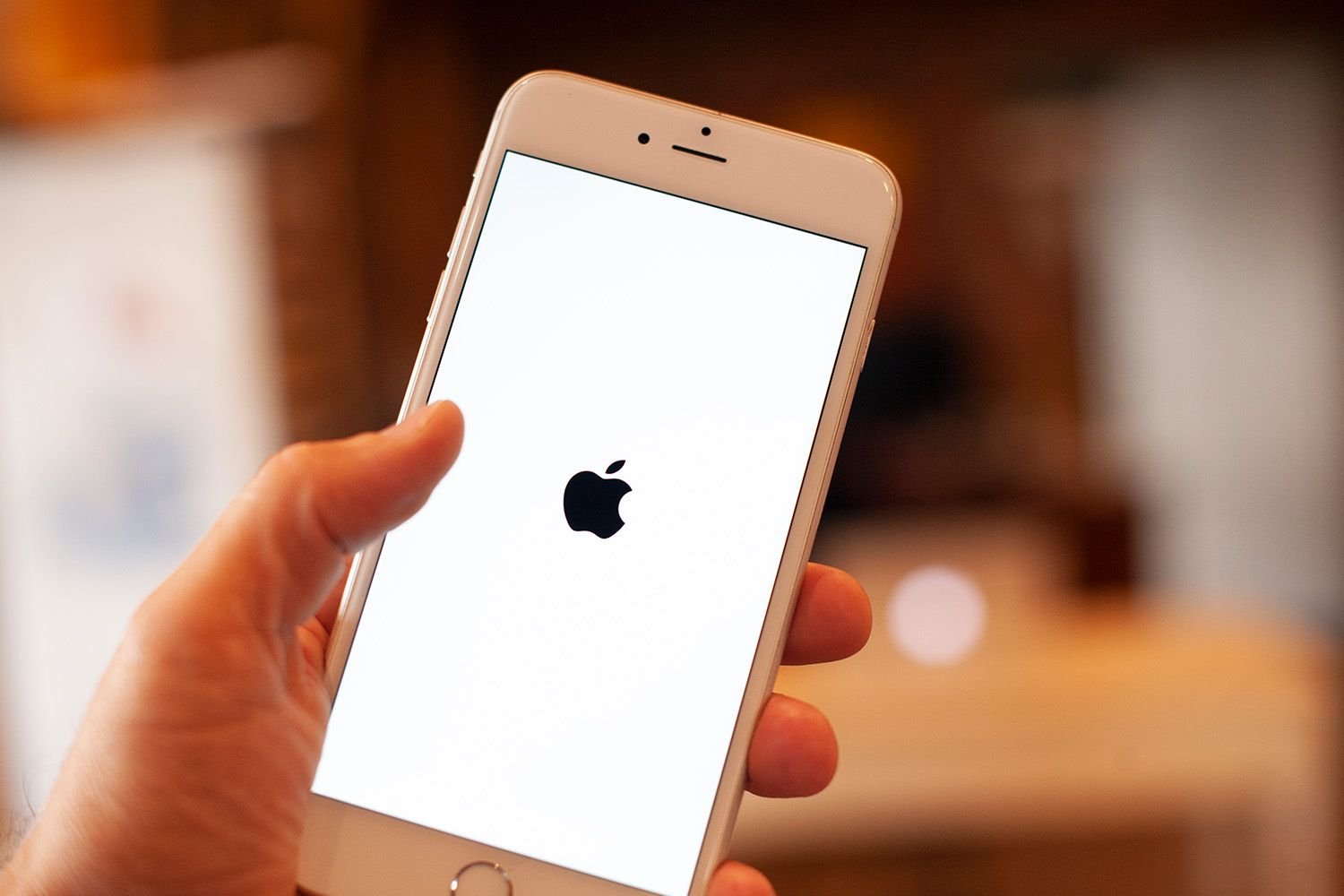
How to Fix an iPhone Stuck on the Apple Logo in 3 Steps
The fastest ways to restore normal startup
Updated on January 21, 2026
NurPhoto / Contributor / Getty Images
The Download
- Restarting your iPhone can sometimes fix it if it’s stuck on the Apple logo.
- Recovery Mode can help your iPhone if it won’t start normally, letting you fix or restore it.
- DFU Mode offers a deep fix by allowing complete restoration, which often helps with tough startup issues.
This article guides you in troubleshooting how to move your iPhone beyond the Apple logo and out of the startup loop.
The fixes discussed in this article are applicable to all iPhone models.
How to Fix an iPhone Stuck on the Apple Logo
Try these three steps to resolve the issue:
-
Restart the iPhone. Many problems, including an iPhone stuck on the Apple logo, can be resolved with a simple restart. Although a restart might not solve the underlying issue since your iPhone is having trouble booting, it’s easy to try and only takes a minute.
-
Put the iPhone into Recovery Mode. Recovery Mode is a troubleshooting mode that can be helpful here. When your iPhone is stuck at the Apple logo, the operating system is having trouble starting. Recovery Mode boots up the phone but prevents the OS from running, allowing you to fix the issue.
Using Recovery Mode, you can install a fresh version of iOS or restore a backup. It’s relatively simple and often resolves the problem.
-
Use DFU Mode. DFU (Device Firmware Update) Mode stops your iPhone partway through the startup process to restore the iPhone, load a backup, or start fresh. While similar to Recovery Mode, DFU Mode is more focused on resolving low-level issues causing the iPhone to be stuck on the Apple logo. Mastering DFU Mode requires practice due to its precise actions, but it is often effective.
Here’s an additional tip: If your iPhone is stuck at the Apple logo while connected to a computer with a USB cable, the cable might be the issue. Try replacing the USB cable with one that is known to work well.
Get Help From Apple
If all the above steps haven’t resolved the issue and your iPhone remains stuck at the Apple logo, it’s time to seek expert help. Make an Apple Store appointment through the app for in-person support, or contact Apple Support online.
Causes of an iPhone Stuck on the Apple Logo
The iPhone can get stuck on the Apple logo screen due to issues with the operating system or hardware. Common causes include:
- Problems during an upgrade to a new version of iOS
- Issues transferring data from an older device to a new one
- Hardware damage within the iPhone
Pinpointing the exact cause can be difficult, so try each solution one at a time until the issue is resolved.
FAQ
-
When an iPhone is stuck on a white screen, it’s usually due to a system update failure after jailbreaking your iPhone. Or, maybe the internal cable connected to the phone’s motherboard is breaking. Although labeled the “White Screen of Death,” there are several fixes for the white screen.
-
If you’ve done a hard reset, but the black screen with a moving circle remains, your phone’s software system is more than likely corrupt. If that’s the case, you’ll need to put your iPhone in Recovery Mode and then reset or reinstall iOS.
-
To fix an iPhone stuck in Recovery Mode, try a hard reset first. If that doesn’t work, restore the iPhone by connecting it to Finder on your laptop. As a last do-it-yourself option, put your phone in Device Firmware Update (DFU) Mode, then wait for the computer to download the necessary software and follow the prompts to restore your phone.
Thanks for letting us know!
