

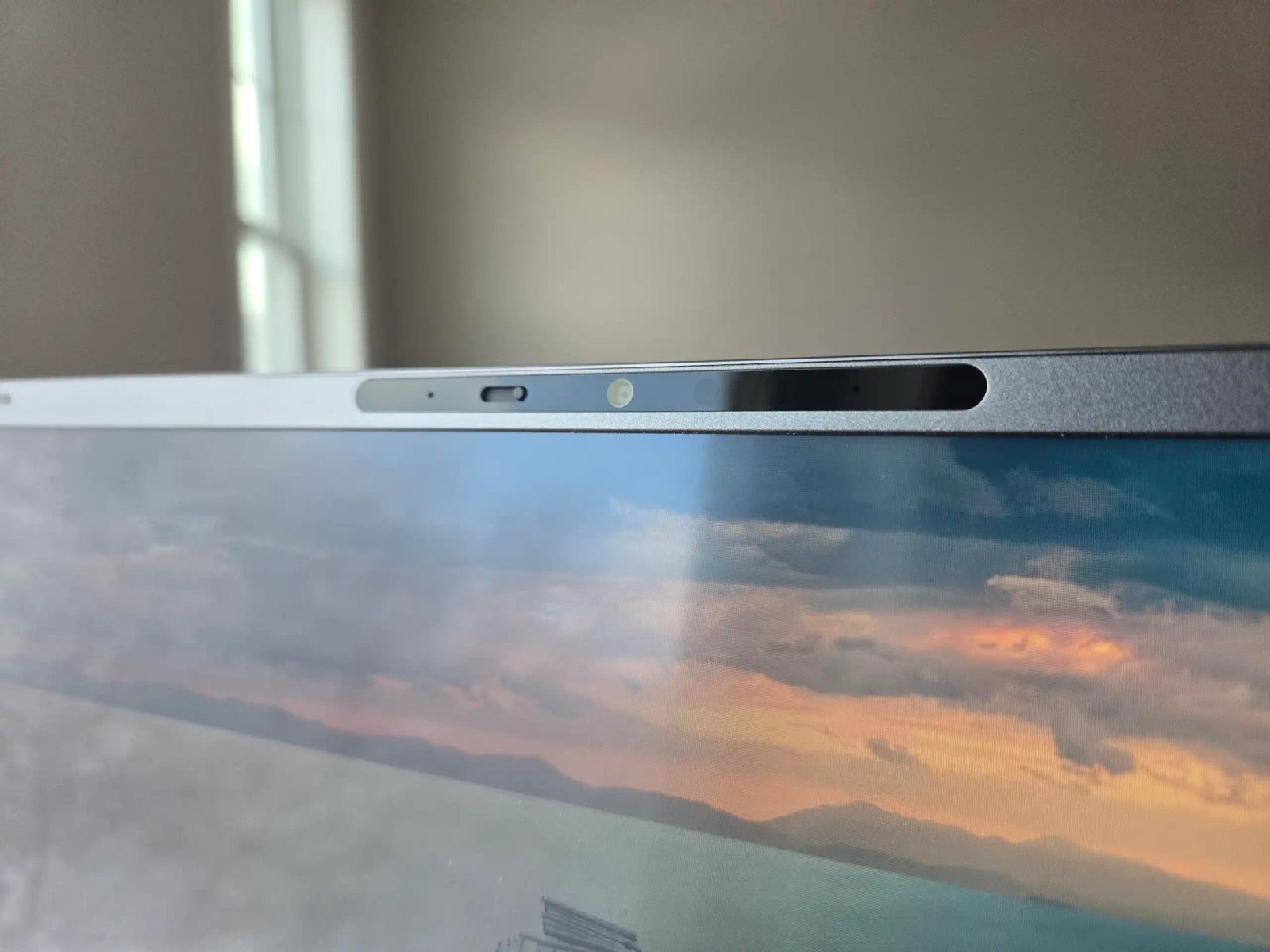
Windows throttled my 4K webcam
Image: Foundry / Chris Hoffman
Summary created by Smart Answers AI
In summary:
- PCWorld discovered that Dell XPS 16’s advertised 4K webcam is limited to 1440p in Windows Camera app due to Windows Studio Effects software restrictions.
- This limitation affects webcam performance despite 4K specifications, with Dell confirming the issue stems from built-in Windows features rather than hardware problems.
- Users can restore full 4K resolution by disabling the Windows Studio Effects Driver, though this removes background blur and auto-framing capabilities.
Dell’s new XPS 14 is an attractive laptop with appealing hardware, including Intel’s new Panther Lake chips and a 4K webcam.
And yet, as I mentioned in my Dell XPS 14 review, the laptop’s webcam did not appear as a 4K camera when I opened the Camera app in Windows. The same happened in OBS.
This problem is due to an issue with Windows’ latest webcam features, and it also points out the many ways in which the software we use with our webcams can degrade their performance.
My 4K webcam can only do 1440p?
The problem hit me when I opened Windows’ Camera app. Dell’s laptop spec sheet listed a 4K webcam, and while the camera did look sharp, it wasn’t exceptional. Were my eyes deceiving me? I decided to investigate, so I went to the Camera app’s settings… and there I saw that the webcam’s maximum resolution was listed as 1440p.
I reached out to Dell’s review rep—what gives? After waiting on some back-and-forth between Dell’s PR and internal tech teams, I was eventually informed that the issue was caused by Windows Studio Effects. “This limitation is in [software], in the OS.”
I reached out to Microsoft to dig deeper and learn more about the issue and when a fix might be available, but the company was not able to provide a response in time for publication.
How to fix the problem
If you run into a 4K webcam that doesn’t actually provide 4K images—whether on the Dell XPS 14 or any other laptop with Windows Studio Effects—here’s a temporary fix you can use.
Open the Device Manager. Once it’s open, find and expand the Software Components drop-down. Look for the Windows Studio Effects Driver (it will probably be the last item on the list). Right-click it, then click Disable device. Finally, reboot the laptop. Afterwards, you should see the camera’s full resolution available in Windows’ Camera app, in OBS, and in other software capable of supporting 4K webcams.
However, as you’ve probably guessed, this will disable Windows Studio Effects (including background blur and auto-framing). Windows Studio Effects will still appear in some portions of the Windows interface, but you won’t be able to enable them (and in many cases, the options that would normally appear will instead be missing).
It’s not just Windows Studio Effects
The specific problem I encountered with the Dell XPS 14 is a driver issue that Microsoft and Dell are working to resolve. But it’s also a reminder that the advertised resolution of a webcam may not be the resolution you actually see. Sometimes, this is even a feature, not a bug.
Most of the major video conferencing platforms (like Zoom and Google Meet) max out at 1080p resolution. You can use a higher resolution webcam, but it will be downscaled to 1080p… or even worse! In fact, 720p is often the default resolution.
On top of that, a lot of video software now include an auto-framing feature. It tracks your movements and adjusts the video frame to keep you centered and keep your background out of the picture, which is handy. Some advanced webcams (like the ObsBot Tiny 2) combine this with a gimbal to deliver super-smooth tracking.
A laptop webcam can’t move like a camera on a gimbal (with one notable exception), so the auto-framing effect is actually achieved by cropping the video image. That more-or-less works… but cropping the video also reduces the camera’s effective resolution.
This is one situation where Dell’s 4K webcam is useful. Its very-high resolution means the video can be severely cropped and still provide at least 1920×1080 resolution—and because that’s the maximum resolution most video conferencing platforms support, you’re able to use the auto-frame feature with little-to-no reduction in sharpness.
There’s more to a webcam than resolution
What’s the big takeaway here? A webcam’s listed resolution on a spec sheet may not be the resolution you see in actual use. The hardware specification is technically correct, but software limitations can prevent you from seeing the webcam’s full resolution.
Video quality doesn’t start and stop at resolution, though. There are several ways to improve the look of a 4K webcam even when it’s not able to deliver its full pixel count. Learn more in our article explaining the pros and cons of 4K webcams.
Author: Matthew S. Smith, Contributor, PCWorld
Matthew S. Smith is a freelance technology journalist with 15 years of experience reviewing consumer electronics. In addition to PCWorld, his work can be found on Wired, Ars Technica, Digital Trends, Reviewed, IGN, and Lifewire. Matthew also covers AI and the metaverse for IEEE Spectrum and runs Computer Gaming Yesterday, a YouTube channel devoted to PC gaming history.
