Close Menu

    Subscribe to Updates

    Get the latest creative news from FooBar about art, design and business.

    What's Hot

    Build a Rocket Boy confirms more layoffs amid further claims of “organized espionage and corporate sabotage”

    Former Blizzard CCO and Bonfire CEO Rob Pardo to present keynote address at GDC Festival of Gaming

    Turkish mobile developer Vento Games secures $4m in seed round funding

    Facebook X (Twitter) Instagram
    • Artificial Intelligence
    • Business Technology
    • Cryptocurrency
    • Gadgets
    • Gaming
    • Health
    • Software and Apps
    • Technology
    Facebook X (Twitter) Instagram Pinterest Vimeo
    Tech AI Verse
    • Home
    • Artificial Intelligence

      What the polls say about how Americans are using AI

      February 27, 2026

      Tensions between the Pentagon and AI giant Anthropic reach a boiling point

      February 21, 2026

      Read the extended transcript: President Donald Trump interviewed by ‘NBC Nightly News’ anchor Tom Llamas

      February 6, 2026

      Stocks and bitcoin sink as investors dump software company shares

      February 4, 2026

      AI, crypto and Trump super PACs stash millions to spend on the midterms

      February 2, 2026
    • Business

      Google releases Gemini 3.1 Flash Lite at 1/8th the cost of Pro

      March 4, 2026

      Huawei Watch GT Series

      March 4, 2026

      Weighing up the enterprise risks of neocloud providers

      March 3, 2026

      A stolen Gemini API key turned a $180 bill into $82,000 in two days

      March 3, 2026

      These ultra-budget laptops “include” 1.2TB storage, but most of it is OneDrive trial space

      March 1, 2026
    • Crypto

      Banks Respond to Kraken’s Federal Reserve Access as Trump Sides with Crypto

      March 4, 2026

      Hyperliquid and DEXs Break the Top 10 — Is the CEX Era Ending?

      March 4, 2026

      Consensus Hong Kong 2026: The Institutional Turn 

      March 4, 2026

      New Crypto Mutuum Finance (MUTM) Reports V1 Protocol Progress as Roadmap Enters Phase 3

      March 4, 2026

      Bitcoin Short Sellers Caught Off Guard in New White House Move

      March 4, 2026
    • Technology

      Big tech companies agree to not ruin your electric bill with AI data centers

      March 5, 2026

      Mark Zuckerberg downplays Meta’s own research in New Mexico child safety trial

      March 5, 2026

      Bill Gates-backed TerraPower begins nuclear reactor construction

      March 5, 2026

      Assassin’s Creed Unity is getting a free 60 fps patch tomorrow

      March 5, 2026

      LG reveals pricing for its 2026 OLED TVs

      March 5, 2026
    • Others
      • Gadgets
      • Gaming
      • Health
      • Software and Apps
    Check BMI
    Tech AI Verse
    You are at:Home»Technology»Add a Photo Widget to Your iPhone Home Screen
    Technology

    Add a Photo Widget to Your iPhone Home Screen

    TechAiVerseBy TechAiVerseJanuary 27, 2026No Comments3 Mins Read5 Views
    Facebook Twitter Pinterest Telegram LinkedIn Tumblr Email Reddit
    Add a Photo Widget to Your iPhone Home Screen
    Share
    Facebook Twitter LinkedIn Pinterest WhatsApp Email

    Add a Photo Widget to Your iPhone Home Screen

    Add a Photo Widget to Your iPhone Home Screen

    Choose a widget size, place it anywhere, and manage which photos appear

    Updated on January 26, 2026

    lechatnoir / Getty Images


    The Download

    • Press and hold an empty area and the plus sign to add photo widgets on your iPhone. 
    • Select the photo widget size and tap Add Widget to display your photos on the home screen. 
    • Exclude images: Share > Remove from Featured Photos. 

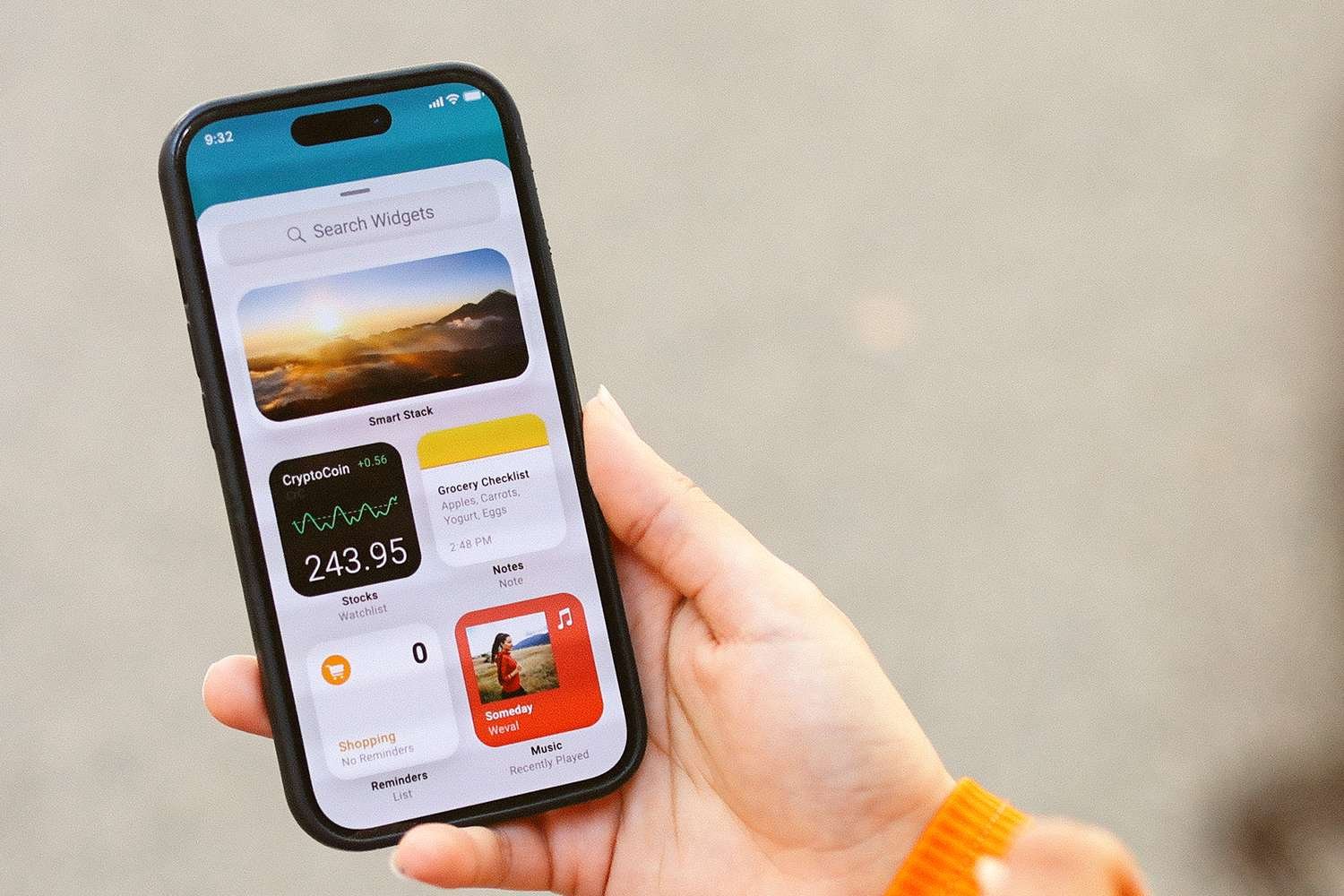
    This article details how to add a photo widget on an iPhone.

    To use iPhone widgets like the photo widget, you need to have iOS 14.0 or newer.

    How Do I Add a Photo Widget on iPhone?

    You can customize your iPhone’s home screen in many ways, and adding a photo widget is one option.

    When you add the photo widget, a selection of your photos will appear in a set spot. You can move the widget if you don’t like its initial position.

    Here’s how to add a photo widget on an iPhone:

    1. Press and hold an empty area on your screen until the icons begin to wiggle.

    2. Tap the + (Plus sign) at the top right or select Edit > Add Widget.

    3. Swipe down to the list of widgets, then tap Photos.

      Several popular widgets are automatically listed at the top of this menu. If you see the Photos widget here, tap it instead of scrolling down to tap the Photos app icon.

    4. Swipe left or right to choose a widget size.

    5. Once you’ve chosen a widget size, tap Add Widget.

    6. The photo widget will then appear on your screen.

    7. To move the Photos widget, press and hold an empty space on the screen.

    8. When the icons start wiggling, press and hold the photo widget.

    9. Drag the photo widget to your desired location.

    10. Release the widget.

    11. Tap an empty area of the screen to lock the widget in place.

    How Can I Change Photo Widget Pictures on iPhone?

    You can choose the size and location of the Photos widget, but you can’t select specific photo albums or individual photos to display.

    Apple uses an algorithm to automatically select your best shots, and you can’t force specific pictures to appear, prevent showing specific people, or control the selection direction.

    The only control over the photo widget’s content is preventing it from showing specific images the algorithm selects. If you see a photo you don’t want, open it in the Photos app and remove it from featured photos. This prevents the widget from displaying that image again.

    Here’s how to remove an image from the photo widget on your iPhone:

    1. Wait for the photo you want to remove to appear.

    2. Tap the image.

    3. Tap the Share icon.

    4. Select Remove from Featured Photos.

    5. The photo will no longer show in your photo widget.

    FAQ

    • To add the Google app widget for easy Google Search access, touch and hold the home screen, tap the + (plus sign), search for the Google app, and tap it. Choose the widget size, tap Add Widget, position it on your home screen, and tap Done.

    • Touch and hold the home screen, tap the + (plus sign), search for the Google Calendar app, and tap it. Swipe left to choose the widget size, tap Add Widget, then tap Done.

    Thanks for letting us know!

    Get the Latest Tech News Delivered Every Day

    Subscribe

    Share. Facebook Twitter Pinterest LinkedIn Reddit WhatsApp Telegram Email
    Previous ArticleHow to Stream the 2026 World Series Live From Any Device
    Next Article AT&T 5G: When and Where You Can Get It in 2026
    TechAiVerse
    • Website

    Jonathan is a tech enthusiast and the mind behind Tech AI Verse. With a passion for artificial intelligence, consumer tech, and emerging innovations, he deliver clear, insightful content to keep readers informed. From cutting-edge gadgets to AI advancements and cryptocurrency trends, Jonathan breaks down complex topics to make technology accessible to all.

    Related Posts

    Big tech companies agree to not ruin your electric bill with AI data centers

    March 5, 2026

    Mark Zuckerberg downplays Meta’s own research in New Mexico child safety trial

    March 5, 2026

    Bill Gates-backed TerraPower begins nuclear reactor construction

    March 5, 2026
    Leave A Reply Cancel Reply

    Top Posts

    Ping, You’ve Got Whale: AI detection system alerts ships of whales in their path

    April 22, 2025704 Views

    Lumo vs. Duck AI: Which AI is Better for Your Privacy?

    July 31, 2025289 Views

    6.7 Cummins Lifter Failure: What Years Are Affected (And Possible Fixes)

    April 14, 2025164 Views

    6 Best MagSafe Phone Grips (2025), Tested and Reviewed

    April 6, 2025124 Views
    Don't Miss
    Gaming March 5, 2026

    Build a Rocket Boy confirms more layoffs amid further claims of “organized espionage and corporate sabotage”

    Build a Rocket Boy confirms more layoffs amid further claims of “organized espionage and corporate…

    Former Blizzard CCO and Bonfire CEO Rob Pardo to present keynote address at GDC Festival of Gaming

    Turkish mobile developer Vento Games secures $4m in seed round funding

    Good Games Group has bought the Humble and Firestoke back catalogues. Now, newly renamed as Balor Games, it wants to invest in triple-I

    Stay In Touch
    • Facebook
    • Twitter
    • Pinterest
    • Instagram
    • YouTube
    • Vimeo

    Subscribe to Updates

    Get the latest creative news from SmartMag about art & design.

    About Us
    About Us

    Welcome to Tech AI Verse, your go-to destination for everything technology! We bring you the latest news, trends, and insights from the ever-evolving world of tech. Our coverage spans across global technology industry updates, artificial intelligence advancements, machine learning ethics, and automation innovations. Stay connected with us as we explore the limitless possibilities of technology!

    Facebook X (Twitter) Pinterest YouTube WhatsApp
    Our Picks

    Build a Rocket Boy confirms more layoffs amid further claims of “organized espionage and corporate sabotage”

    March 5, 20262 Views

    Former Blizzard CCO and Bonfire CEO Rob Pardo to present keynote address at GDC Festival of Gaming

    March 5, 20262 Views

    Turkish mobile developer Vento Games secures $4m in seed round funding

    March 5, 20262 Views
    Most Popular

    7 Best Kids Bikes (2025): Mountain, Balance, Pedal, Coaster

    March 13, 20250 Views

    VTOMAN FlashSpeed 1500: Plenty Of Power For All Your Gear

    March 13, 20250 Views

    Best TV Antenna of 2025

    March 13, 20250 Views
    © 2026 TechAiVerse. Designed by Divya Tech.
    • Home
    • About Us
    • Contact Us
    • Privacy Policy
    • Terms & Conditions

    Type above and press Enter to search. Press Esc to cancel.