

How to Choose a Computer Monitor (2025): Everything You Need to Know
Most people treat their monitor like a printer. They just want it to work without having to think about it. But if you work from home or spend hours gaming every night, it’s worth an upgrade. And that’s where things can get complicated. Do you pay extra for more ports? Or for a large display? How about something with smart features so it can double as a television—or springing for one of those flashy OLED monitors? Those are all worthwhile features, but don’t splurge for the latest thing before you know what you’re getting into.
If you’re looking to upgrade from a basic 1080p monitor you’ve been using for a decade, I recommend buying the Dell 27 Plus 4K. It’s sharp, has good colors, and is shockingly affordable. I knew right when I tested it that it would be unbeatable at its price, and I promise: I won’t be offended if you skip all my words and buy that immediately. But if you’re shopping around, I have advice ranging from panel types to refresh rate. Let’s dive in.
For our full recommendations, check out our Best Monitors and Best Gaming Monitors guides.
Panel Types
For more information on panel types, read our in-depth look at the tech that distinguishes these panel types from each other.
LED
The standard type of monitor panel these days is still LED (light-emitting diodes), which refers to the way the screen is backlit. This isn’t the brightest or most color-accurate type of panel, but it’s grown into the cheapest and most widely accessible option. Within the category of LED backlighting, there are also a variety of LCD (liquid crystal display) types. IPS (in-plane switching) is the most common, while VA (vertical alignment) is still used in some cheaper creator-focused monitors, and TN (twisted nematic) is available in some lower-end gaming monitors. But IPS has become the standard.
Fortunately, there has been some development on IPS over the years, which improves various elements of the image quality. You’ll see “IPS Black” in various LG or Dell monitors, which improves the contrast to closer to 2,000:1. There’s even a second version of IPS Black (known as IPS Black 2.0 or Enhanced IPS Black) that claims to push contrast up to 3,000:1. I’ve also tested Nano IPS, another advanced version of IPS from LG that improves the color gamut. I’ve tested a 6K monitor that uses Nano IPS Black, combining them all together to produce one of the best IPS displays possible. As good as these are, though, they can’t achieve the highs of more advanced forms of backlighting.
OLED
Photograph: Luke Larsen
OLED (organic light-emitting diodes) is the other primary option these days. For so long, it had been kept away from PC monitors and only used in televisions and smartphones. But over the past couple of years, OLED has become a popular high-end option, especially in the world of gaming monitors. As opposed to LED, OLED uses individually-backlit pixels, meaning each can be turned on and off entirely.
This is why it’s able to achieve what is sometimes called “infinite” contrast. If you can get to complete black, the only thing holding back your dynamic range is brightness. The crop of OLED panels, whether manufactured by LG (known as W-OLED) or Samsung (known as QD-OLED), typically range up to a claimed 1,000 nits of peak HDR (high dynamic range) brightness. That means in HDR content, some portion of the screen hits 1,000 nits, giving the image brighter highlights. Some OLED monitors don’t get very bright in SDR (standard dynamic range), which is important to consider, as that’s how you will use the screen most of the time.
Contrast and brightness aren’t the only benefits. Viewing angles are significantly better, there’s a shorter response time (more on that later), and you don’t have light bleed to deal with along the edges of the screen. Most OLED monitors also have great color performance as well, though it differs panel-to-panel. The only thing holding back adoption was price, and that has come down drastically in just the past year or so. When OLED gaming monitors first launched in 2022, there was nothing under $1,000. These days, you can get one for as low as $500. We’ve also seen OLED now supported at different screen sizes, resolutions, and refresh rates. A few nongaming OLED monitors for creators even launched this year, including the Dell 32 Plus QD-OLED and Samsung Smart Monitor M90SF.
Other than price, the risk of burn-in has been the other hurdle to overcome in the wide adoption of OLED in monitors—that’s when you’ll see the afterimage of static elements of the screen. With so many static elements on a computer monitor, such as the menus and taskbars, you might think the risk of burn-in isn’t worth it. These days, manufacturers use various techniques to prevent burn-in, such as automated pixel refreshes and pixel shifting. Most manufacturers also offer longer warranties, sometimes up to three years. Long-term testing in the industry has shown that while burn-in is possible, it’s not something most people have to worry about anymore.
Mini-LED
This third option is a bit more uncommon, but it still pops up from time to time. Like OLED, mini-LED refers to a form of monitor backlighting that is somewhere between traditional LED and OLED. Mini-LED displays use various zones of lighting to improve contrast and brightness. These are known as dimming zones, and the more a screen has, the better.
On current monitors, mini-LED displays can get brighter than OLED, both in SDR and HDR. But again, it’s all about the ratio of dimming zones to the screen size. You do not want to buy a cheap mini-LED gaming monitor like this one with only 337 dimming zones across its 27-inch screen, while a monitor like the KTC M27T6 has 1,152 zones for only $30 more. The difference in contrast between these two screens is massive.
The number of dimming zones isn’t the only important spec in a mini-LED display, as Apple’s 32-inch Pro Display XDR has just 576 dimming zones, yet has exceptional contrast and brightness. The fine-tuning of the dimming zone algorithm matters here too, which is why quality varies in mini-LED panels. That said, mini-LED hasn’t enjoyed the adoption that OLED has, and outside of Apple, there aren’t many nongaming options out there. As outlined in a white paper on the matter, Apple chose it for very specific reasons, including for its “better uniformity, sustained thermal and brightness performance, off-axis viewing characteristics, and resistance to permanent burn-in.” While OLED might be the future of monitors, mini-LED is going to continue to play a role in the near future as the brighter and more efficient option.
Aspect Ratio and Shape
Monitors have seen an explosion of experimental new shapes and sizes over the past few years. Overall, they’ve gotten bigger, but we’ve also seen different trends, such as curves or wider aspect ratios. The standard aspect ratio is still 16:9, with sizes ranging from 25 inches up to 43 inches. Just remember that if you’re getting into television sizes, you’ll need a desk big enough to handle it.
But 16:9 is hardly the only option these days. Ultrawide monitors, with their 21:9 aspect ratio, have become a popular shape, especially for PC gamers. This gives you a wider view in games, but it’s also a solid alternative to using dual screens for multitasking. The 34-inch size has become the go-to form factor, but there are also larger versions of 21:9 that measure 38 or 40 inches across.
Photograph: Simon Hill
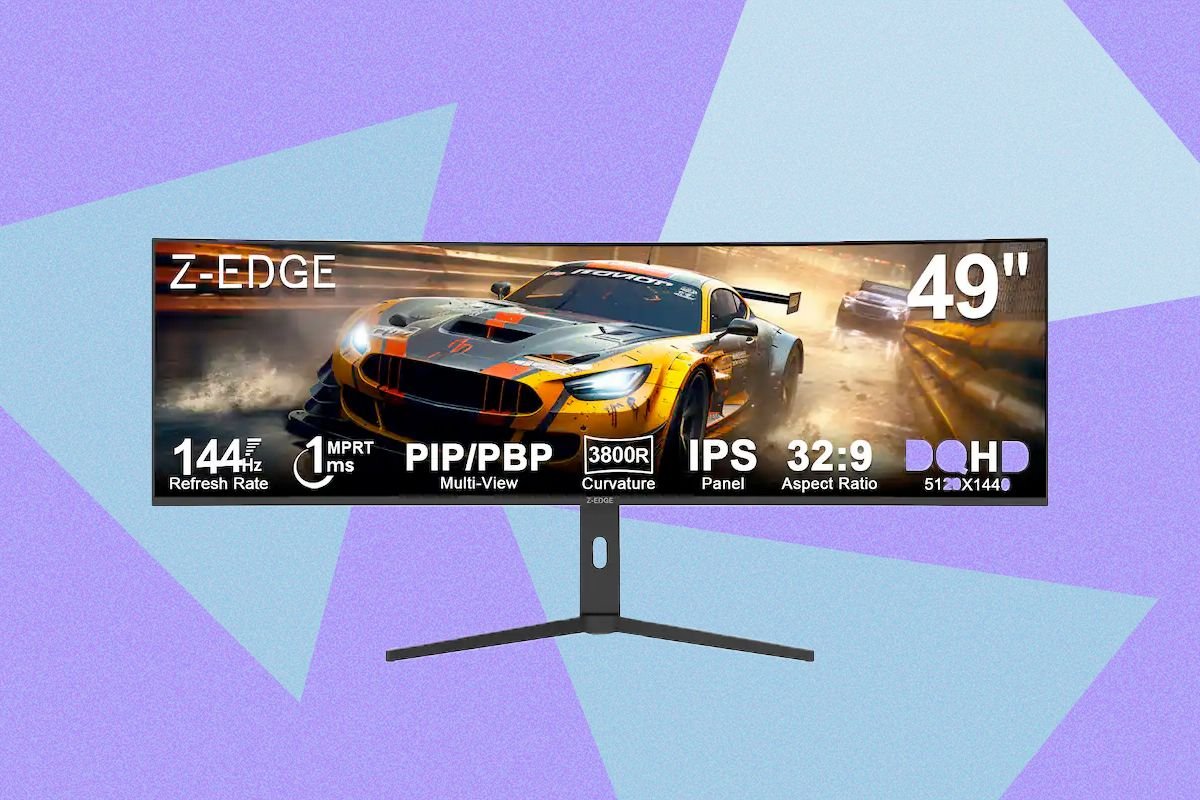
If you really want to go big, though, there are some insane 32:9 aspect-ratio monitors out there, also known as super ultrawide. These monstrosities are sold in either the 45-inch or 49-inch size. In general, I wouldn’t recommend them unless you have a specific use case in mind.
Whether it’s standard ultrawide or super ultrawide, these monitors almost always come with a curve, immersing you a bit more in the center of the screen. This is measured and marketed as the radius of the curve in millimeters. For example, this 49-inch super ultrawide monitor has a 3800R curve, which is a very gentle curvature, slightly pulling the sides in. On the other hand, an 800R curve is the most aggressive curve you’ll find on a monitor, which isn’t great for work but really doubles down on in-game immersion. For my money, the 1800R curve on the 34-inch Alienware 34 QD-OLED feels just right.
Size and Resolution
There’s nothing more important than the sharpness of your monitor. We tend to only think of that in terms of resolution, but the real measure is pixel density, or pixels per inch (ppi). 1080p might look OK on your 13-inch laptop screen, but stretched out on your 27-inch monitor, you’ll be able to see those pixels. That’s why I always recommend considering both the resolution and size hand-in-hand. Below, you’ll see them listed out in terms ppi, depending on what size or resolution monitor you’re considering. The more ppi, the sharper the image will be. And for reference, a 13-inch MacBook Air has a pixel density of 221 ppi, while a 14-inch MacBook Pro clocks in at 254 ppi.
5K and 6K monitors are finally getting closer to the sharpness of high-end laptops. We typically sit farther back from monitors since they are larger, though, so that increase in sharpness may not be as easily perceived. For remote office work and content creators, I recommend getting a monitor with over 100 ppi to attain a sharpness you’ll be satisfied with over the long haul. Increasingly, you can get 4K 27-inch monitors for well under $300.
This equation is different for gaming monitors, which tend to lean more toward lower resolutions. For gaming, you’re looking for the right balance of resolution and refresh rate.
Refresh Rate
Photograph: Brad Bourque
The refresh rate is what affects the smoothness of motion and animation on the screen. Measured in hertz (Hz), it’s the speed at which the display can refresh itself to show new information. For the longest time, it was assumed that all monitors and screens had a 60-Hz refresh rate. But as PC performance increased, gaming monitors were quick to begin offering higher frame rates, and the ceiling only continues to rise.
The refresh rate is only as useful as the frames per second (fps) of the game you’re playing. A 240-Hz refresh rate won’t do you much good if you can only get Cyberpunk 2077 to 80 fps. That’s why anything over 240 Hz is only noticeable and beneficial for competitive esports gamers looking to get an edge over their opponents.
A higher refresh rate has also become a more common mainstay in mainstream or professional monitors. 120-Hz makes everything on your monitor feel smoother, including animations on websites and even the drag of the cursor across the screen. It’s not even a particularly premium feature anymore, showing up in monitors like the Dell Plus 27 4K.
Input Lag vs. Response Time
Photograph: Steven Puetzer/Getty Images
This is a point of confusion for PC gamers, as the terms often get thrown around interchangeably. Input lag and response time might feel like a similar problem, but they have very different causes. Input lag is a system-wide measurement, while response time is specific to monitor technology. Input lag measures the second you click on your mouse or keyboard and when something triggers on your screen. This total measurement includes many factors, including the signal transmission from your mouse, the processing of your PC, and more. The response time of the monitor is also one of the important factors in the equation that can create more input lag.
Response time is how fast a pixel on your monitor can change from one color to another. In particular, it’s how fast a pixel can change from a certain percentage of gray to another, also known as gray-to-gray (GtG). This is often measured in milliseconds. The reason it’s been talked about more recently is due to OLED, which has a drastically faster response time than LED. Monitor manufacturers often make exaggerated claims about this, selling an OLED display for its 0.5 millisecond GtG response time. I wouldn’t take any specific response time claims too seriously, except to know that OLED is a huge step forward in response time. So as long as there are no other weak links in the chain of your input delay, overall responsiveness in games should feel noticeably improved.
Adjustability and Ports
Photograph: Luke Larsen
Monitors have up to four types of adjustability: height, swivel, tilt, and rotate. Budget monitors may not have any of these, while more expensive options may offer a wide range of motion in all four adjustments. Height is the most important of the four for ergonomics. Unless you plan to use a monitor arm, being able to position your monitor at eye level is crucial for keeping a healthy posture.
Tilt is less important, though swivel can be important for dual-monitor setups. Lastly, there’s rotate. Rotating a monitor around in horizontal mode as a secondary monitor has become a popular option, often used for messaging or other idle apps. Just be careful: Some monitors with rotate adjustability can’t fully flip 90 degrees into horizontal mode. Sometimes it’s a limitation due to the lack of proper height adjustment, for example.
Speaking of monitor arms, you’ll want to make sure your monitor comes with a standard VESA mount. Almost all monitors have one these days, but you’ll still occasionally come across some budget-tier displays that don’t.
Photograph: Luke Larsen
All monitors have HDMI and DisplayPort to connect to a PC (or even VGA if it’s a really old one). Those are the basics. If you want the latest of these port standards in monitors, you’re looking for HDMI 2.1 and DisplayPort 2.1.
More and more monitors nowadays include a built-in USB hub, which can sometimes include USB-A ports, an Ethernet jack, and more. Once you connect over the upstream USB-C (or USB-B if the monitor’s a bit older), you can plug accessories and peripherals directly into the monitor. That’s particularly useful if your laptop doesn’t have many ports, or if you frequently move your laptop and like to keep it as cable-free as possible. Many monitors also include Power Delivery over USB-C, letting you connect and charge your laptop through a single cable.
Some workstation-level monitors take this a step further and also include a KVM (keyboard, video, mouse) switch, which allows you to switch between multiple laptops or PCs, all plugged into the same monitor. Most people don’t need this, but if you run multiple PCs for any reason, it’s a must.
The placement of these ports is also important. Ideally, you won’t have to reach the back of your monitor too often, because let’s be real, it’s a huge pain. Down-firing ports are the hardest to reach and see, but give you the cleanest look. Back-facing ports, meanwhile, are easier to plug in. Some of the new Dell monitors even include a pop-down, forward-facing port module for quick access to USB-C or a headphone jack. Some monitor stands include some built-in cable management to route your cords, which is a helpful feature.
Pricing
There’s a huge range of pricing for monitors, ranging from under $100 to $5,000 for the Apple Pro Display XDR. Most people will likely be shopping in the sub-$300 range, which is what makes options like the Dell 27 Plus 4K so impressive. It’s not a perfect monitor by any means, but in my own testing, it hits the sweet spot in price and quality.
But I love the diversity in the monitor space right now. You’ll have to pay extra for it, but as a product category, it has matured to a point where you’ll always be able to find what you’re looking for, whether it’s a port-filled workstation, a super-fast gaming monitor, a display with smart features that doubles as a television, or maybe even an oversized ultrawide monitor that replaces dual monitors.
