Close Menu

    Subscribe to Updates

    Get the latest creative news from FooBar about art, design and business.

    What's Hot

    Razer Huntsman Signature Edition Unveiled as Ultra-Premium Flagship Gaming Keyboard

    Google Pixel 10a available on 5 March in Malaysia from RM2299

    Steam Deck’s out of stock, but the Xbox Ally is under $500

    Facebook X (Twitter) Instagram
    • Artificial Intelligence
    • Business Technology
    • Cryptocurrency
    • Gadgets
    • Gaming
    • Health
    • Software and Apps
    • Technology
    Facebook X (Twitter) Instagram Pinterest Vimeo
    Tech AI Verse
    • Home
    • Artificial Intelligence

      Read the extended transcript: President Donald Trump interviewed by ‘NBC Nightly News’ anchor Tom Llamas

      February 6, 2026

      Stocks and bitcoin sink as investors dump software company shares

      February 4, 2026

      AI, crypto and Trump super PACs stash millions to spend on the midterms

      February 2, 2026

      To avoid accusations of AI cheating, college students are turning to AI

      January 29, 2026

      ChatGPT can embrace authoritarian ideas after just one prompt, researchers say

      January 24, 2026
    • Business

      The HDD brand that brought you the 1.8-inch, 2.5-inch, and 3.5-inch hard drives is now back with a $19 pocket-sized personal cloud for your smartphones

      February 12, 2026

      New VoidLink malware framework targets Linux cloud servers

      January 14, 2026

      Nvidia Rubin’s rack-scale encryption signals a turning point for enterprise AI security

      January 13, 2026

      How KPMG is redefining the future of SAP consulting on a global scale

      January 10, 2026

      Top 10 cloud computing stories of 2025

      December 22, 2025
    • Crypto

      Is Bitcoin Price Entering a New Bear Market? Here’s Why Metrics Say Yes

      February 19, 2026

      Cardano’s Trading Activity Crashes to a 6-Month Low — Can ADA Still Attempt a Reversal?

      February 19, 2026

      Is Extreme Fear a Buy Signal? New Data Questions the Conventional Wisdom

      February 19, 2026

      Coinbase and Ledn Strengthen Crypto Lending Push Despite Market Slump

      February 19, 2026

      Bitcoin Caught Between Hawkish Fed and Dovish Warsh

      February 19, 2026
    • Technology

      Steam Deck’s out of stock, but the Xbox Ally is under $500

      February 20, 2026

      How fast is your Internet? Windows 11 will (finally) tell you

      February 20, 2026

      Oh no, Intel is moving customer support to AI

      February 20, 2026

      LG’s 32-inch 1440p 180Hz gaming monitor is a steal for $197

      February 20, 2026

      Claude Sonnet 4.6 brings 1M token power and fewer AI hallucinations

      February 20, 2026
    • Others
      • Gadgets
      • Gaming
      • Health
      • Software and Apps
    Check BMI
    Tech AI Verse
    You are at:Home»Technology»How to use Accessibility Reader on Apple devices
    Technology

    How to use Accessibility Reader on Apple devices

    TechAiVerseBy TechAiVerseDecember 3, 2025No Comments3 Mins Read4 Views
    Facebook Twitter Pinterest Telegram LinkedIn Tumblr Email Reddit
    How to use Accessibility Reader on Apple devices
    Share
    Facebook Twitter LinkedIn Pinterest WhatsApp Email

    How to use Accessibility Reader on Apple devices

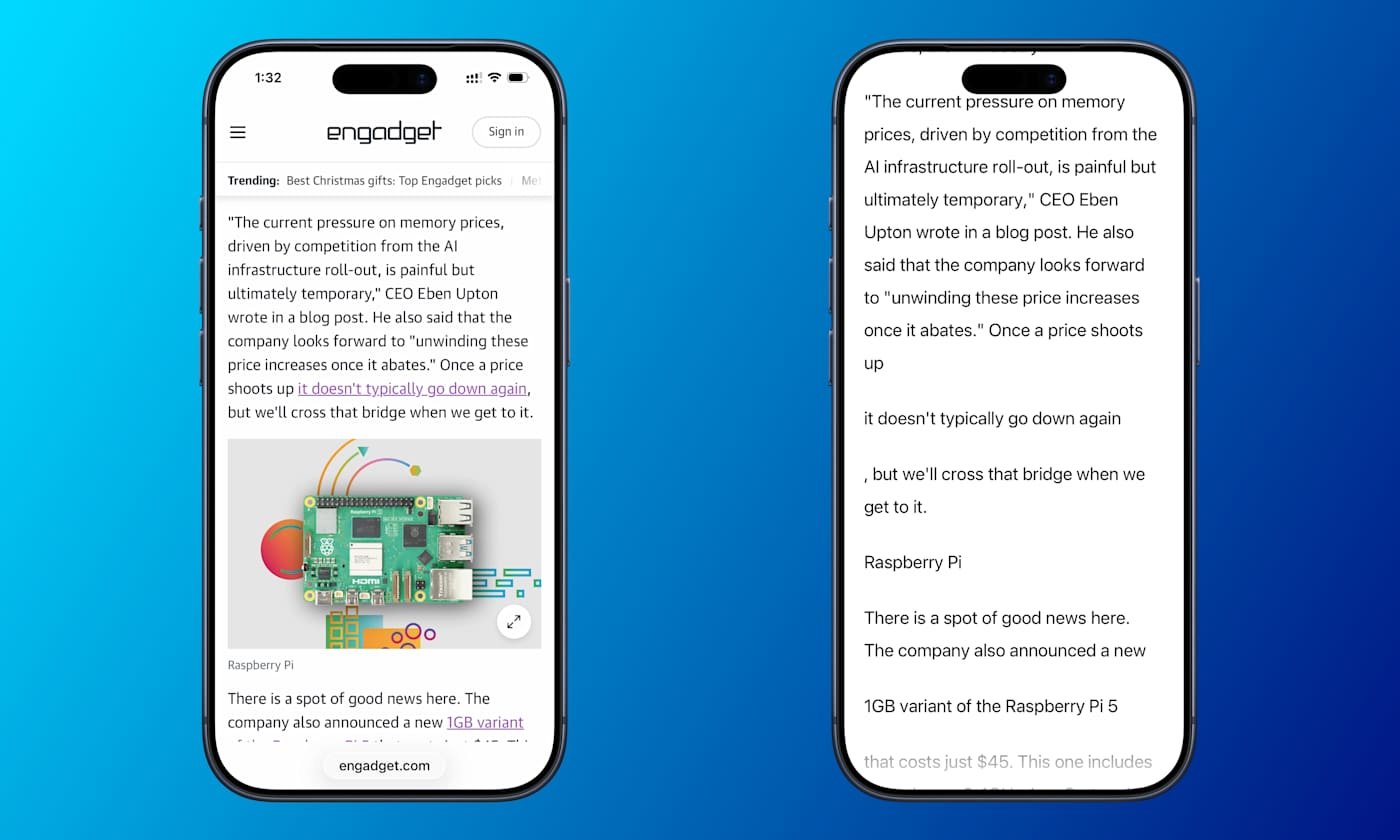
    Earlier this year, Apple launched a new tool that makes it easier to read anything on your device’s screen. Designed for people with visual disabilities, Accessibility Reader provides a full-screen view of any on-screen text. (It’s a bit like Safari’s Reader Mode, only for any app.) The feature also lets you listen to your text read aloud.

    Accessibility Reader is available for iPhone, iPad, Mac and Vision Pro. Your device will need to be on iOS 26, iPadOS 26, macOS 26 Tahoe or visionOS 26.

    It’s a fairly straightforward experience. But since it offers several launch and customization options, here’s a quick breakdown on getting started and tweaking it to your liking.

    How to turn on and open Accessibility Reader

    The Accessibility Reader settings toggle on macOS.

    Activating the feature is the same on any Apple device. Go to Settings > Accessibility > Read & Speak, and turn on Accessibility Reader. (It’s at the very top.) Once you’ve done that, there are several ways to launch the tool.

    Accessibility Shortcut (iOS / iPadOS / visionOS)

    Triple-click the lock button. That’s the side button on iPhone and the top button on iPad and Vision Pro. (On older iPads, triple-click the Home Button.) This brings up the Accessibility Shortcut, which includes a quick-launch item for Accessibility Reader.

    If you don’t need the other items in this menu, you can remove them at Settings > Accessibility > Accessibility Shortcut. Then, using the shortcut will immediately launch Accessibility Reader.

    Control Center (iOS / iPadOS)

    You can add a Control Center shortcut for the tool. Swipe down from the top-right to launch Control Center. Then, hold your finger on an empty part of the screen. Choose “Add a control” (bottom), and find the Accessibility Reader shortcut. You can now tap that Control Center icon whenever you want to launch it.

    Keyboard Shortcut (macOS)

    The default Accessibility Reader shortcut on Mac is Cmd-Esc. Or, customize it in Settings > Accessibility > Accessibility Reader by clicking the “i” next to the menu item.

    Accessibility Shortcut (macOS)

    The tool is also available as part of the Mac’s Accessibility Shortcut. You can launch this menu using a keyboard shortcut (Opt-Cmd-F5), by quickly pressing Touch ID three times or with a Control Center shortcut. (However, the above Cmd-Esc shortcut should be the simplest for most people.)

    How to listen to text in Accessibility Reader

    The tool also includes a text-to-speech (TTS) option. Once you’ve launched Accessibility Reader, listening is as simple as pressing the play button (▶). You can then use the pause (⏸) shortcut to take a break.

    Other options include skipping backward or forward using the rewind or fast-forward symbols. There’s also a speed adjustment, which you can change by choosing the 1x button.

    If you want the Reader to speak text automatically when it opens, you can do that, too. That option is found under Settings > Accessibility > Accessibility Reader. (On Mac, select the “i” symbol next to the menu entry to find this option.)

    How to customize Accessibility Reader

    It’s easy to adjust the font size, color, theme and more. Once you’ve launched Accessibility Reader, tap the customization (AA) button. There, you can change the theme, colors, font, line spacing and much more.

    Share. Facebook Twitter Pinterest LinkedIn Reddit WhatsApp Telegram Email
    Previous ArticleOpenAI’s new confession system teaches models to be honest about bad behaviors
    Next Article Apple design lead Alan Dye is heading to Meta
    TechAiVerse
    • Website

    Jonathan is a tech enthusiast and the mind behind Tech AI Verse. With a passion for artificial intelligence, consumer tech, and emerging innovations, he deliver clear, insightful content to keep readers informed. From cutting-edge gadgets to AI advancements and cryptocurrency trends, Jonathan breaks down complex topics to make technology accessible to all.

    Related Posts

    Steam Deck’s out of stock, but the Xbox Ally is under $500

    February 20, 2026

    How fast is your Internet? Windows 11 will (finally) tell you

    February 20, 2026

    Oh no, Intel is moving customer support to AI

    February 20, 2026
    Leave A Reply Cancel Reply

    Top Posts

    Ping, You’ve Got Whale: AI detection system alerts ships of whales in their path

    April 22, 2025684 Views

    Lumo vs. Duck AI: Which AI is Better for Your Privacy?

    July 31, 2025274 Views

    6.7 Cummins Lifter Failure: What Years Are Affected (And Possible Fixes)

    April 14, 2025156 Views

    6 Best MagSafe Phone Grips (2025), Tested and Reviewed

    April 6, 2025118 Views
    Don't Miss
    Gadgets February 20, 2026

    Razer Huntsman Signature Edition Unveiled as Ultra-Premium Flagship Gaming Keyboard

    Razer Huntsman Signature Edition Unveiled as Ultra-Premium Flagship Gaming Keyboard Razer has announced the new…

    Google Pixel 10a available on 5 March in Malaysia from RM2299

    Steam Deck’s out of stock, but the Xbox Ally is under $500

    How fast is your Internet? Windows 11 will (finally) tell you

    Stay In Touch
    • Facebook
    • Twitter
    • Pinterest
    • Instagram
    • YouTube
    • Vimeo

    Subscribe to Updates

    Get the latest creative news from SmartMag about art & design.

    About Us
    About Us

    Welcome to Tech AI Verse, your go-to destination for everything technology! We bring you the latest news, trends, and insights from the ever-evolving world of tech. Our coverage spans across global technology industry updates, artificial intelligence advancements, machine learning ethics, and automation innovations. Stay connected with us as we explore the limitless possibilities of technology!

    Facebook X (Twitter) Pinterest YouTube WhatsApp
    Our Picks

    Razer Huntsman Signature Edition Unveiled as Ultra-Premium Flagship Gaming Keyboard

    February 20, 20262 Views

    Google Pixel 10a available on 5 March in Malaysia from RM2299

    February 20, 20261 Views

    Steam Deck’s out of stock, but the Xbox Ally is under $500

    February 20, 20262 Views
    Most Popular

    7 Best Kids Bikes (2025): Mountain, Balance, Pedal, Coaster

    March 13, 20250 Views

    VTOMAN FlashSpeed 1500: Plenty Of Power For All Your Gear

    March 13, 20250 Views

    This new Roomba finally solves the big problem I have with robot vacuums

    March 13, 20250 Views
    © 2026 TechAiVerse. Designed by Divya Tech.
    • Home
    • About Us
    • Contact Us
    • Privacy Policy
    • Terms & Conditions

    Type above and press Enter to search. Press Esc to cancel.