

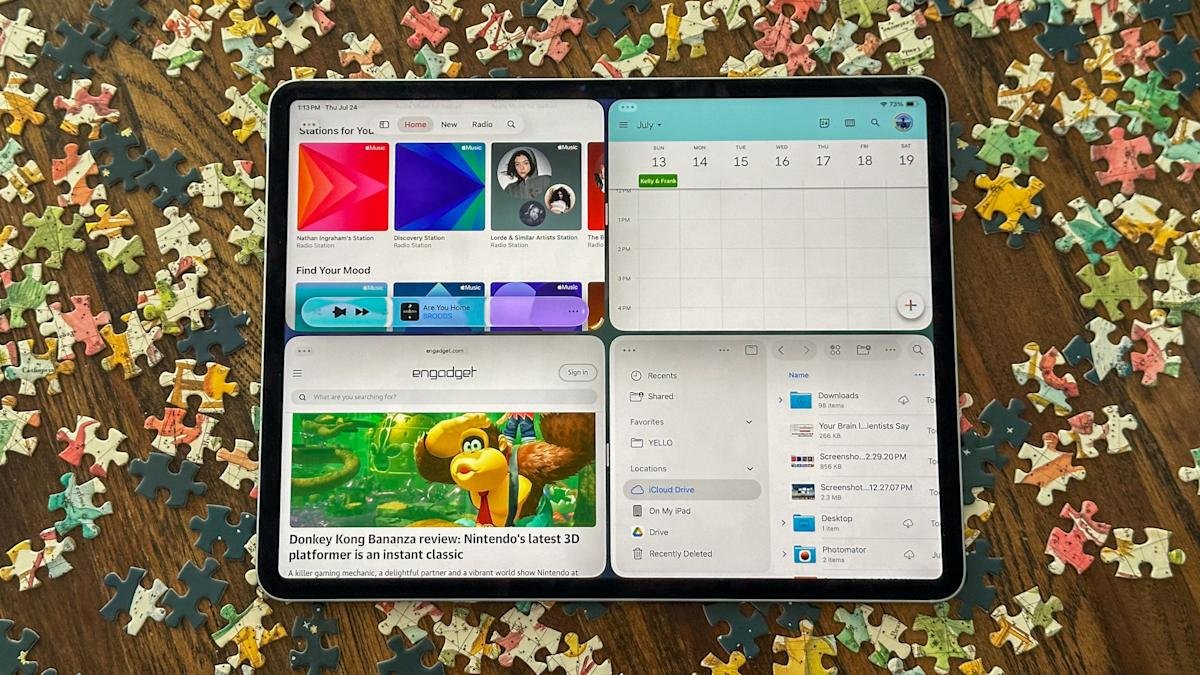
iPadOS 26 preview: A long-awaited multi-tasking update pays off (so far)
I’m not going to beat around the bush: iPadOS 26 and its new multitasking features are a game-changer for Apple’s tablets. Pretty much ever since Steve Jobs introduced the iPad 15 years ago (!), Apple has tried to straddle two worlds. In one, the iPad is a super-simple, easy-to-use tablet with a gorgeous display and tons of good apps from the App Store for gaming, entertainment and light work. The other world is one where the iPad replaces your traditional computer, letting people do the serious work that’s been typically reserved for a Mac or Windows PC. iPadOS has too often served as a hindrance to the latter goal over the years, particularly as the iPad Pro has gotten more powerful.
The Stage Manager multitasking experience Apple introduced with iPadOS 16 in 2022 was a major step towards making the iPad’s software suitable for power users — but it was rather buggy at launch and not as flexible as iPad power users were hoping for. The calls to just put macOS on the iPad grew louder. But this year, Apple took a different approach: it brought crucial macOS features like the familiar “stoplight” window controls, the menu bar at the top of the screen and vastly improved window management tools to iPadOS 26. The result is an iPad experience where you can easily jump between multiple windowed apps set up just how you like and one where you go full screen to focus on your content. It’s a massive refinement over the old Stage Manager experience and one that I think will finally satisfy iPad die-hards who want to push their tablets to the limit.
Before diving into the details, a quick word on betas and stability. As usual, Apple’s public betas feel pretty stable and capable, but that doesn’t mean you won’t run into weirdness here and there. App crashes, particularly with third-party apps, happened far more on this beta than with iPadOS 18. I’m confident those things will be ironed out as more developers update their apps for the new OS, but you’ll also run into things like UI inconsistencies and occasional stutters and jerkiness when jumping between apps. As we always say, think hard about what you’re willing to put up with to try a beta, even the relatively stable public beta. After all, the final version of iPadOS 26 will be out in just a few months.
(Ed. note: Apple just released the public betas for iOS 26, iPadOS 26, macOS 26 and watchOS 26. This means, as Nate stated above, you can run the preview for yourself, if you are willing to risk potentially buggy software. As usual, we highly recommend backing up all your date before running any beta, and you can follow our guide on how to install Apple’s public betas to do so.)
Multitasking
Time for the nitty-gritty. When you update to iPadOS 26, you’ll be asked if you want to enable multitasking or have apps run in full screen mode only. When Apple says full screen only, they mean it. Past versions of iPadOS offered either Stage Manager or a basic, two-app split screen view with a third app available in a Slide Over window. The latter option is gone now, though you can still easily set up two or three apps side by side with iPadOS 26’s window tiling features. You can use multitasking mode or full screen only, with no in between. I think that’s a smart move, as plenty of people who use an iPad probably never use these multi-app features, and having a “multitasking on or off” toggle keeps things simple.
When you turn on multitasking mode, apps still open in full screen first — but you can grab any corner of the window to resize it or touch the top of the app and drag it around the screen. You could already do this with Stage Manager, so what really sets this new mode apart is how it interacts with other windows. Swiping up from the bottom of the display reveals the usual Home Screen view, but with your apps tucked to the side as a visual cue that you can add another app to that group. And, as before, you can move, resize and stack that app window wherever you want.
As I’m writing this, I have nine separate app windows open on my iPad, and getting around them feels more Mac-like than ever before. I can swipe up and hold from the bottom of the Home Screen and see every open app in a smaller window, which makes finding the specific thing I want a lot easier; I can also just command-tab through them. Apps can be minimized down to the dock and when I want the app back, it’ll pop open in the same size window and same placement as before. Swiping up from the bottom of the screen twice minimizes everything I have open to start fresh — but again, if I reopen those apps, they’ll go back to exactly where I had them set up before.
I realize it sounds kind of silly to make a big deal of this, but it’s hard to overstate how much this improves the iPad multitasking experience. With Stage Manager, I was never quite sure where an app would open or if it would be full screen or windowed. It can be useful for setting up multiple groups of apps, but adding and removing apps from that view was not terribly intuitive. Just opening everything in one space is a lot more intuitive. And if you want to have various different spaces with specific apps, you can still turn on Stage Manager. It’s a lot easier to add and remove apps from various different groups than it used to be; minimizing a window puts it into its own space that you can add more apps to (or just use it on its own).
There are a few other new components that make multitasking work as well as it does. These should be quite familiar to Mac users: The three-button “stoplight” controls and the menu bar. The stoplight buttons replace a similar three-dot window management system from older versions of iPadOS but are far more intuitive. The red one closes an app window entirely, the green one makes a window full screen and then yellow one minimizes it to the dock. These controls are crucial to making iPadOS 26 feel more flexible and fluid than ever before, particularly if you want to have more than one window of a single app open. I’ve also found them to be crucial when working with multiple apps on a smaller display, like on the 11-inch iPad Pro. Stage Manager usually felt like more trouble than it was worth on anything but a 13-inch iPad, but these new multitasking features make it easy to flip through a bunch of apps and pop into full screen if I need more space.
The expanded window tiling controls here also make that easier. If you press and hold the stoplight buttons, you’ll get more options to resize apps to take up a quarter, third or half the screen; you can also grab drag bars to further adjust how much space each app takes up. I really liked a mode where three iPhone-sized apps fill the screen, and when there was something I wanted to devote more focus to, I just hit its green button and went full screen.
The menu bar, meanwhile, is pretty easy to explain. If you swipe down from the top of the screen (or move your trackpad cursor up to the top) you’ll see familiar menus like File, Edit, Window and so on. It’s a handy way to find more advanced controls for an app, and it also keeps the various toolbars in apps from getting too overloaded with options.
Long story short, this all adds up to a wildly improved iPad experience. It doesn’t compromise the single-screen, focused mode that the iPad has always been known for, and it greatly improves working across multiple windows and apps. And unlike Stage Manager, which was limited to M-series iPads, these new multitasking features will work on any iPad that can run iPadOS 26, including the base A16 iPad and the iPad mini.
Everything else
If this was the only change to iPadOS Apple made this year, it would already be a worthwhile upgrade, but there are a bunch of other improvements coming this fall. These include an improved Files app, the Preview app that has long been a core part of macOS, the new Liquid Glass design, some potentially useful Apple Intelligence features, a nice set of updates to the Messaging app and a new Phone app.
Much has been said about Liquid Glass, with tons of prognostication about how Apple was ruining usability and throwing its UI back to 2006 in a blatant Windows Aero ripoff. As usual, the truth is much more nuanced. No one familiar with Apple’s software will be thrown off by this update — everything works as it did before, and while you’ll definitely notice some refractive visual elements, it’s not the wholesale change that aggrieved social media posters would have you believe. You can make things look very different if you, say, opt for the new clear glass icon look, but you can also leave the standard colorful iOS icons in place.
Over the course of the developer betas Apple has released since WWDC, the company has responded to feedback and reduced some of the transparency effects that were present in the first version of Liquid Glass — as it turns out, submitting feedback during a beta works! (Interestingly, they bumped some of the transparency back up in the fourth developer beta, right after turning it down in beta 3. This is still a work in progress.) Probably the biggest functional change is that app controls, toolbars and sidebars float over apps in a new, distinct layer rather than being wholly separate from an app’s content — but again, it’s not the kind of thing that’ll faze anyone who has been using an iPad or any other Apple device.
Preview isn’t exactly a thriller, but it’s a much better way to work with PDFs and images than the old interface that launched them in a separate Files window. You can still find PDFs in Files easily enough, but actually dealing with the document in a separate app is better than making Files pull double duty.
Speaking of Files, it has even more in common with the Mac Finder than before. You can now put specific folders in the dock for faster access to whatever you’re working on, and the app list view has resizable columns and collapsible folders, just like on the Mac. You can also add emoji and colors to folders for more visual differentiation (and, let’s be honest, a little more fun). And for the first time, you can pick specific apps to open different file types by default — so if you’d rather have PNG images open in Photomator than Preview, go nuts.
There are also major updates to the communication experience across the board in iPadOS 26. The FaceTime app got a nice redesign with large contact posters of your recent calls. But what’s most handy here is that the FaceTime app no longer tries to do double-duty with voice calls. A dedicated Phone app handles that now. Assuming you also have an iPhone, you’ll see all your recent voice calls and voicemails here and you can quickly place a new call through your contact list or using a traditional dialer. I’ve always liked the idea of being able to place calls on devices I’m using during the work day like my Mac or iPad, and this makes it far easier.
Messages is getting some fun visual enhancements like backgrounds for your conversations, but the thing I’m most interested in is message filtering. The app now identifies unknown senders and puts those messages in a separate folder, and there’s also a new spam folder where it drops messages that Apple strongly believes are spam.
If a message gets filtered into unknown senders or spam, you can mark it as known even if the contact isn’t in your address book and those messages will end up in your main view by default. The system also attempts to recognize when a message from an unknown sender is timely and needs to be delivered to your main inbox — something like a delivery person saying they’re nearby or other urgent content like a two-factor authentication code. This feels primarily like a phone-first feature; I get messages on my iPad, but haven’t seen much get filtered directly to spam or unknown callers yet. Once all my devices are running Apple’s latest software, we’ll see how that goes, but I’m still very excited about any feature that’ll help combat the deluge of spam messages that plague my inbox.
For more details on the updated communications experience and other new features like the Apple Intelligence-powered Live Translation, I’ll point you to my colleague Mat Smith’s iOS 26 overview. As is usually the case, nearly every feature coming to the iPhone this year is also coming to the iPad, meaning Live Translation will arrive on the tablet too.
There’s a lot more here that I haven’t been able to get to, like improved background tasks that let you export a video without keeping the app in focus, updates to Genmoji and Image Playground, the Journal app finally coming to iPad, Apple Intelligence-powered Shortcuts updates and much more. I’ll be continuing to check out how things change between now and the final release this fall, but even based on my experience with the recent beta, I’m quite pleased with where iPadOS 26 is at. The updates to multitasking are so significant that I can’t imagine going back to an iPad without them.
