

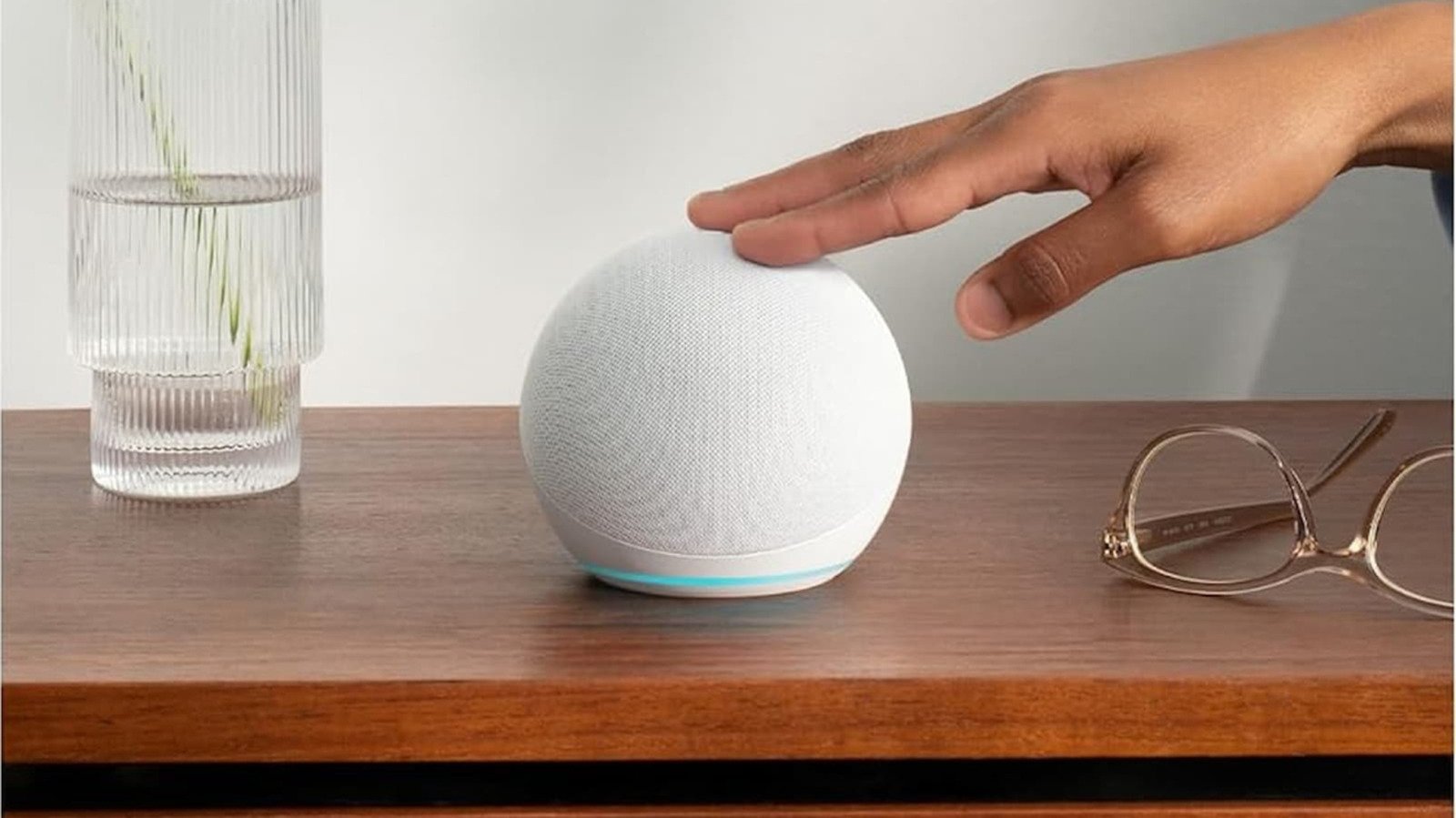
16 Common Amazon Echo Problems (And How To Fix Them)
We may receive a commission on purchases made from links.
If you’ve brought an Amazon Echo device into your home, you’re likely amazed by how convenient voice-activated tech can be. These smart speakers and displays are supposed to give you a seamless interaction experience with your music, the news, your smart home devices, and communication. When they are working perfectly, they really feel like an assistant you can’t live without, ready to handle any command just by saying “Alexa.”
Unfortunately, Echo devices can run into the occasional glitch or issue that just ruins that feeling of effortless control. When your smart speaker starts messing up, it’s easy to assume that the device itself is broken. Even worse, you might think the core technology is totally unreliable. However, plenty of issues can be fixed in just minutes.
When something goes wrong, you should think of it as a small puzzle that you can solve instead of a major technical breakdown. You can usually figure out exactly where the trouble is coming from, tweak a setting or two, and get your device back to its fully functional and intelligent state.
Inaccurate weather or local news
If your Amazon Echo is telling you it’s going to rain when the sun is out, or if it keeps giving you traffic and news updates for the wrong place. This makes a handy use for the Echo Dot almost useless. The problem is usually rooted in the device’s static setup settings.
When this issue pops up, it may mean the physical address settings for that particular device are wrong inside the app. Your smartphone uses GPS to constantly update where it is, but the Echo relies on the location data you put in when you first set it up.
The good news is that fixing this is super easy. It only takes a couple of minutes using your smartphone. Just open up the Alexa app, navigate over to Devices, and then find the Echo & Alexa section. Next, you need to select the exact device that is feeding you the wrong local information and tap on Device Location. All you have to do is input your current complete address and then save it.
Drop In feature failing to connect
The Drop In feature will sometimes fail to connect or tell you the contact is unavailable. Usually, this is because of a permissions issue. Since this works essentially like an instant two-way intercom without needing the person on the other end to “answer” the call, Amazon sets up strict privacy controls that you have to adjust manually.
So, just owning the devices doesn’t cut it; you actually need to authorize the connection across several different levels. First thing, you’ll want to make sure Drop In is actually activated for the device itself. You can do this by jumping right into unit’s settings, then Communications, and finally Drop In. Set that to either On or My Household.
Choosing My Household keeps devices registered to your specific Amazon account, but On lets approved contacts outside your home start a connection. If this specific setting is toggled to Off, that device won’t be reachable, no matter what your other configurations are. Make sure you have the main Communications switch turned on inside the device menu. If this is disabled, all calling, just won’t work.
Accidental Voice Purchases
Getting a shipping notification for something you did not order is a real shocker that can happen to an Echo owner. A feature your echo has gives you one-click purchase options on your Amazon account. However, the voice order can get triggered accidentally.
What is going on here is definitely the device’s configuration. The company actually turns on voice purchasing as the default setting for a lot of their devices. Fortunately, you can stop all of this by grabbing your phone and opening up the Alexa app.
To secure your wallet, you need to dive into the settings menu and change how your device handles buying. Once you are in there, you will want to go to Voice Purchasing. The most drastic thing you can do is just switch the feature completely off. However, you can instead set up a quick four-digit voice code, so you have to say it out loud before Alexa can authorize any transaction.
Multi-room music is out of sync
If you are using the everywhere group to broadcast music across all your Echo devices, you might run into a distracting delay or echo effect. That happens because the speakers are not synchronized perfectly. This lag, or latency, shows up often because the different devices in your house might have various processing speeds, or they rely on varying connection strengths.
Luckily, you can solve this issue pretty easily right inside the Alexa app. You just need to head over to the Devices tab, pick the specific speaker that sounds out of sync, and then find the Audio Sync option. This helpful tool lets you play a little test tone and use a slider to manually adjust the playback timing until it lines up with your others.
Even if you use that manual adjustment tool, the main reason synchronization fails is often because of how the devices connect to your network or to external devices. If you are noticing delays, make sure that all of the devices are using their internal drivers or connected with an auxiliary cable instead of Bluetooth for a wired connection.
Crackling or static audio
If you start hearing crackling or static audio coming from your Amazon Echo, that can really mess up your music streaming or whenever you are trying to talk to Alexa. It is understandable to think your speaker is completely blown out, but this distortion usually comes from environmental issues like Bluetooth interference from other devices nearby.
Look for things like baby monitors or microwaves, which often operate on frequencies that crowd the wireless spectrum. That ends up disrupting the signal stability of your smart speaker. To handle this situation, the very first thing you should try is pulling the plug on the device completely from its power source.
Do not just try to quickly toggle the power off and on again. You really need to give it a full minute of rest before you connect again. This waiting period is important because it lets those internal components fully discharge. This sort of “soft reset” is usually enough to fix those intermittent glitches.
Cannot register a used device
Buying a pre-owned Amazon Echo or snagging one as a hand-me-down is a fantastic, budget-friendly way to beef up your smart home setup. You often run into one specific and frustrating roadblock, though. The device sometimes won’t register to your account during the initial setup. This usually happens because the person who owned it before you forgot to deregister the unit.
That small oversight they missed stops the device from accepting you as the buyer. Essentially, Amazon’s cloud servers still see that specific hardware serial number as the property of the previous user. This treats your attempt to connect like it’s unauthorized, a theft-deterrent security feature.
The main way to fix this is by reaching out to the original owner and asking them to sign in to their profile online. They just need to navigate to the Manage Your Content and Devices section on the Amazon website and Deregister the unit. If you can’t reach the seller, Amazon Customer Support will be able to override this situation for you if you can prove ownership.
Alexa talks too much
Amazon Echo can be a bit too chatty sometimes, giving you long confirmations for easy tasks or just offering up extra information nobody asked for. Alexa is definitely supposed to be helpful, but the default setting, which makes it verify everything with a spoken “Okay” or a full sentence. It really messes up the flow of your smart home, especially late at night or when things are quiet. Alexa’s habit of being talkative often happens because of accidental activities. The device sometimes mistakes background noise, like the TV or someone chatting, for its wake word.
If you want to make that entire interaction snappier and a lot less annoying, you can absolutely activate something called Brief Mode. You are going to find this feature in Settings and then Voice Responses. What’s super cool about Brief Mode is that when you use smart home commands, it swaps Alexa’s spoken confirmations for just a simple chime sound.
The spinning green light
If you happen to look over at your Amazon Echo and spot a green light spinning around that top ring, your device is letting you know something important. It means you have a call or a drop in that is currently active.
The spinning light is the signal for a live, open line. This means the microphone is hot, and it’s sending your audio to someone else. If you were not expecting to be on a call, you can simply say, “Alexa, hang up,” and that will stop the connection immediately, cutting the feed right away. After you have terminated that active call, you should probably figure out how it started so you can avoid those kinds of surprises going forward.
If the Drop In feature seems to be activating way too often or just feels intrusive, you can adjust the permissions to better suit what you need for privacy. Open up the Alexa app and head over to Echo & Alexa, and then pick the specific device you want to tweak.
Contacts not syncing
It’s frustrating when you try to use your smart speaker for hands-free calling, and Alexa tells you a specific person isn’t in your address book even though their number has been saved on your phone for ages. If that happens, you’re probably seeing a synchronization error between your mobile device and Amazon’s cloud servers because Contact Syncing is not working. This is a common issue that you’ll know how to fix once you understand why it happens.
This sync problem usually pops up if the Alexa app doesn’t have the necessary permissions. It could also mean the list hasn’t been updated lately to include recent additions or edits. Luckily, you can fix this digital mess by forcing a refresh by launching the Alexa app on your mobile device.
Once you have the app open, head over to the Communicate tab and tap the contact icon. Doing this shows you the contacts Alexa currently believes you possess. To sort out the discrepancy, you need to select the three vertical dots in the corner. Then, choose “Import Contacts” from the options that come up.
Echo show screen flickering
If your Echo Show looks like it is having a strobe light party or maybe a nervous twitch, that may be because the Adaptive Brightness feature is just overreacting to everything. It gets really confused by slight illumination changes or sometimes even dirt or not being charged. This makes the backlight pulse quickly or twitch as the device tries hard to adjust to its surroundings.
The good news is that you can stabilize the display. All you have to do is go to Display in Settings, and then toggle off Adaptive Brightness. Switching that off means you can set a fixed brightness level. If messing with the ambient light sensor does not totally fix things, then the flicker could actually be a sign of a power delivery problem instead.
If you are using a replacement power adapter that did not come from Amazon, or if you have a wall outlet that is faulty, that can absolutely cause the screen to become unstable. You should use different adapters and outlets to find the correct issue.
Whisper mode not working
Whisper Mode lets the assistant hear when you are speaking quietly and then respond back in a whisper, which is great if you do not want to wake anyone up. There is a small problem where the device suddenly stops recognizing hushed tones and answers at full volume instead.
If this happens to you, the reason is usually that the feature has been switched off. This deactivation happens sometimes after a firmware update goes through, or maybe if the device settings get reset. Another big reason why this happens is that the background noise in your room is just too loud for the device to actually pick up that “whisper” frequency.
To fix this, dive into Settings and pick Whisper Mode from Voice Responses. While you are checking things out in the app, it is a smart idea to look at your Voice ID, too. A lot of recognition problems are actually connected to how the device understands your specific vocal patterns.
Duplicate smart home device names
If you keep finding yourself repeating commands or Alexa constantly asks you to clarify which device you’re talking about, you’re likely dealing with a naming conflict inside your smart home setup. This usually crops up when two device names are just too close together. For example, you might have something like a “Living Room Lamp” and a “Living Room Light”.
A human knows the difference immediately, but the phonetic similarities can really trip up the voice assistant. If you want seamless operation, make sure your device labels are simple, unique, and easy to say. This can fix a lot of issues.
Now, the problem isn’t always related to the devices you are currently using, because it sometimes happens because you forgot to completely delete an old device entry. When you swap out a smart plug or a light bulb, that old entry usually hangs out in the Alexa app.
Wi-Fi connectivity issues
When your Amazon Echo device suddenly stops talking, it normally means that it just can’t reach those cloud servers it needs to actually function. You’ll usually know this is happening if you see a violet or orange light spinning on the device, or sometimes Alexa just gives you an error message saying she’s having connection issues. This can happen because of environmental issues, like maybe you’re getting wireless interference from your router.
It’s also possible you changed your Wi-Fi password recently and just forgot to update the device settings, or perhaps your Echo is just hanging out in a signal dead zone in your home where the link isn’t stable enough. You should remember that physical barriers mess up wireless signals easily.
If you’re trying to fix the issue, the very first thing you need to do is make absolutely sure your Echo is sitting within 30 feet of your wireless router. If moving it closer doesn’t seem to work, then you’re going to have to restart both your modem and your Echo device. You can do this by just unplugging them both for roughly 30 seconds.
Alexa is having trouble understanding you
If you keep getting the response, “I’m sorry, I didn’t quite get that,” from Alexa, it usually boils down to a few issues. Check to make sure your mic isn’t blocked before assuming there’s some sort of software weirdness stopping the gadget from handling the audio the way it should.
Also, check your Echo device and look for a red color on your light, that means the mute feature is definitely switched on. If you notice this light, all you need to do is press the button with the little microphone icon on it to turn those sensors back on.
If the light isn’t red, then you might be dealing with a physical obstruction. In that case, grab a microfiber cloth and give the top a quick and gentle cleaning. If you’re still having trouble even after trying those steps, you should unplug the power adapter either from the wall outlet or right from the hardware itself and leave it disconnected for at least 30 seconds before connecting it again. Otherwise, reset your Voice ID right in the Alexa app.
Music cuts out or stops streaming
If you are seeing that your music plays for a second and then cuts out, or if it looks like it is buffering constantly, that usually means your Wi-Fi is probably being overloaded because you have too many devices connected. Knowing that the Echo spot works with Spotify is great, but not if it doesn’t work.
You can reduce the congestion by making sure to disconnect any devices you are not actively using from your network. This frees up crucial bandwidth specifically for your speaker. Move the Echo closer to your router to get a reliable stream.
Something else you should try is disabling and then re-enabling the music skill you are trying to use. If you are a user of Spotify or Apple Music, head right into the Alexa app and unlink the account in the Settings menu under “Music & Podcasts” and then sign back in.
Bluetooth pairing failures
When you run into these pairing problems, it is usually not a hardware failure, but it is often because your Echo is holding on to some stale Bluetooth connections from gadgets it has not seen in ages. The good news is that the best way to sort this out is super simple, and it just means clearing out that digital mess to force a brand-new setup.
First up, use a voice command to tell Alexa to disconnect anything that is currently hooked up by saying “Alexa, disconnect.” Once that is done, you will need to jump into the Alexa app on your smartphone. You should head over to Devices, and then choose Echo & Alexa, and then tap on the exact speaker that is being stubborn and refusing to pair.
From that screen, you need to hit Bluetooth Devices, and then make sure you select Forget Device for all of those old connections that are just sitting there. Doing this basically wipes the slate clean and removes those devices that might be causing conflicts.
