

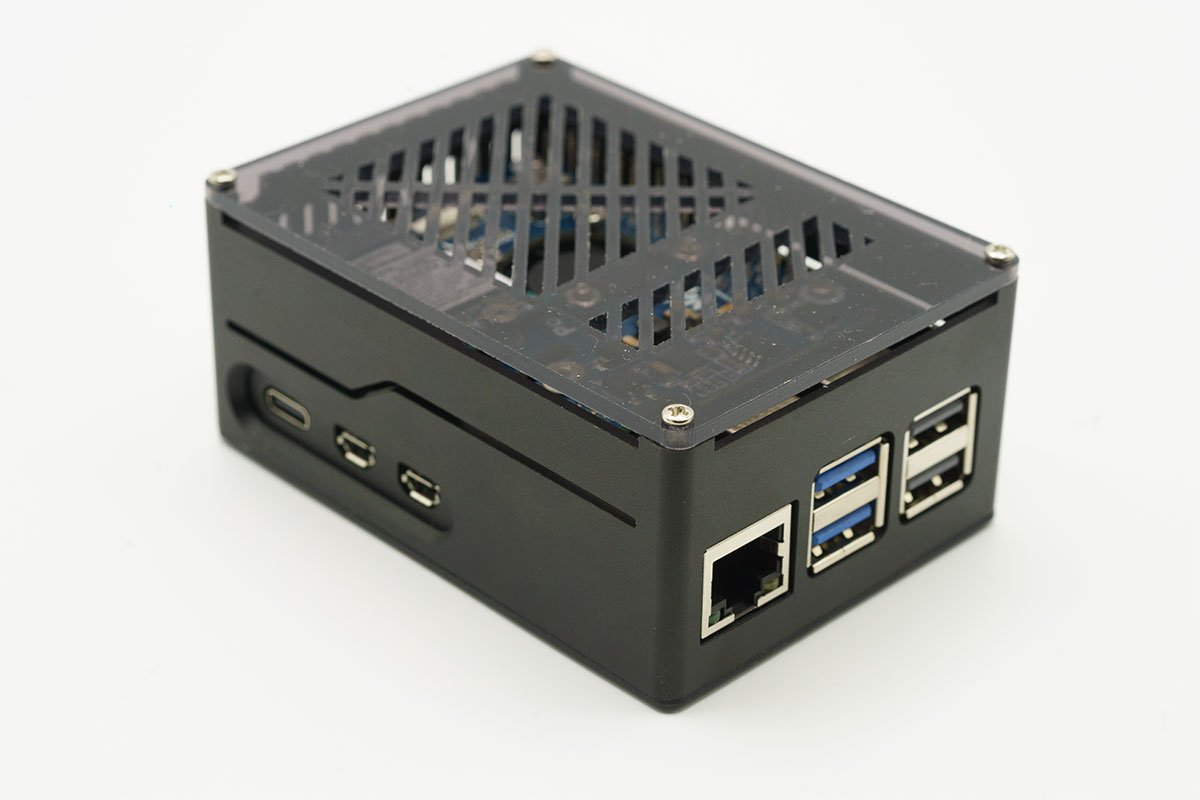
I built a maxed-out Raspberry Pi 5 PC with an SSD for under $200. You can, too!
Image: Anders Lundberg
The Raspberry Pi 5 is several times faster than previous models of the compact and cheap computer. For less than a couple hundred bucks, you can have a computer that can do many tasks that previously required a regular PC, that consumes very little power, and for which the web is overflowing with exciting tutorials and projects you can take on.
In this guide, I’ll first walk you through how to build a Raspberry Pi 5 with maximum performance so you can use it for everything it’s capable of. To do that, you’ll need to take advantage of the board’s new ability to connect an SSD via PCI Express.
Further reading: 10 surprisingly practical Raspberry Pi projects anybody can do
Here’s what you need
To fully follow this guide, you will need the following hardware:
- Raspberry Pi 5 (8GB for maximum performance, but you can choose 2- or 4GB as well)
- A so-called “hat” (a type of daughterboard called HAT that attaches to the top of the Raspberry Pi) with an M.2 slot (I chose the Waveshare POE M.2 HAT but there are several others)
- A cooler — often comes with the HAT
- NVMe-based SSD in M.2 format
- MicroSD card of at least 8GB or a USB adapter for the M.2 SSD for the installation
- Micro HDMI to HDMI cable to connect display
Anders Lundberg
You will also need a power source, either a USB charger that supports USB-PD and a USB-C cable or the official charger from Raspberry Pi. If you’re going to use USB accessories without external power, the charger should be able to handle at least 25 watts, otherwise 15 watts is enough.
In addition to the above, you will need a mouse, keyboard, and a monitor — otherwise you will have to connect using SSH in Terminal and make all settings via text commands. If you are later going to use the computer as a server of some sort, these are no longer needed and you can connect using SSH or VNC to make changes.
Further reading: Raspberry Pi: The best beginner projects
It’s not a must, but I recommend getting a chassis for the computer. It protects against dust and reduces the risk of damage from static electricity. A chassis also makes the Raspberry Pi look more like a complete computer and not just a circuit board.
Foundry
Installing the operating system
Here you have two options. If you have a USB adapter for M.2 SSDs, you can plug your SSD into it and install the system directly onto it. If you don’t, you can use a Micro SD card instead and clone the system to the SSD once the Raspberry Pi is up and running.
Whichever way you choose, start by downloading and installing Raspberry Pi Imager, a program that makes it easy to install the operating system for the tiny computer.
Once it’s up and running, select the Raspberry Pi 5 for the device on the left, the Raspberry Pi OS (64-bit) in the middle, and your new SSD or Micro SD card on the right. Double-check that you get the right disc so you don’t accidentally erase an external hard drive or SSD if using with your regular computer.
Foundry
Then click Next and select Edit Settings. These settings make it easier to get started, and they’re saved so you don’t have to fill them in again if you want to reinstall the system later. For example, you can select the time zone and enter the name and password of your wireless network. If you have an SSH key on your computer and want to connect remotely without a password, you can tick Enable SSH under Services and enter your public key.
When you save and move on, the program will ask one last time if you are sure you want to delete all content on the selected target. After that, it will install the system and check that everything was done correctly.
Assembling the computer
The first step is of course to put the parts together. There aren’t many so it shouldn’t take too long, but if you’re not used to tinkering with computer components, there are a few things to keep in mind.
Perhaps the most important is to avoid static electricity, which in the worst case can burn the sensitive circuitry. Do not walk around the room while holding the circuit board, especially not on carpet. Use the box it came in or an anti-static bag to move it.
Ground yourself before touching the circuit board, for example by touching an element or the metal casing of a grounded electrical product. Even safer is to get a so-called ESD wrist strap and follow the instructions.
Anders Lundberg
Start by screwing on the four stands for the HAT where the SSD is mounted. They should be included and are usually made of brass, with a small screw that should sit on the underside of the circuit board.
Then attach the cooling pads that come with the cooler to the various circuits and mount the cooler according to the instructions provided. The cooler is pressed into place with two spring-loaded pins in specific holes on the PCB.
Further reading: Raspberry Pi troubleshooting: Helpful fixes to common problems
Attach the SSD to the HAT and then carefully install the HAT so that all pins are in the correct position. If the M.2 HAT you have purchased has a built-in fan, you first need to attach it to the connector labelled FAN, which is located behind the outer USB connectors. Gently push the HAT into place and screw it on with the supplied screws.
Anders Lundberg
The next step is to attach the small cable tie between the HAT and the dedicated PCI Express connector on the Raspberry Pi. Gently loosen the fasteners (a brown plastic piece on the Raspberry Pi, may look a little different on different HATs) and insert the ribbon. There are little white arrows showing which way is right — you can see how it should look in the pictures above. Push back the fasteners to hold the band in place.
The last step is to mount the computer in the chassis, if you have one.
Foundry
The first start
Now it’s time to see if everything went right. Connect the monitor, mouse, and keyboard and then plug in the USB cable for power. The Raspberry Pi doesn’t have an on/off switch, so the computer will start up immediately (however, some power adapters designed for Raspberry Pi have a built-in switch).
If all has gone well, you’ll soon be greeted by the Raspberry Pi OS welcome screen and can start going through the basic settings. If you didn’t fill in a new account name and password during installation, you should do so here. Once you’re done with the settings, the system will check for and install the latest updates before letting you into the desktop.
Foundry
Now you can basically start using the Raspberry Pi as a simple desktop computer. Firefox and Chromium are pre-installed and you can install other software by clicking on the Raspberry Pi icon in the top-left and selecting Settings > Recommended Software.
On the top-right you will see shortcuts to Bluetooth and Wi-Fi settings and available updates.
Before we go any further, I suggest you make a small change via the terminal so that the SSD can utilize its maximum speed. Click on the terminal icon on the top-left and type the following command:
sudo nano/boot/firmware/config.txt
Scroll to the bottom and add the following text (which enables PCIe 3.0):
# Change PCIe speed to gen 3
dtparam=pciex1
dtparam=pciex1_gen=3
Foundry
Then press Ctrl-O, Return, Ctrl-X to save and close the file. Then type in:
sudo rpi-eeprom-config --edit
Change the line with BOOT_ORDER to:
BOOT_ORDER=0xf416
Press Ctrl-O, Return, Ctrl-X again and the file will be saved and the system will overwrite the firmware settings so that the computer will prefer to boot from SSD even if an SD card is in place with operating system.
If you installed the system on a Micro SD card, it is now time to clone the system to the SSD. Type the following commands one by one in the terminal:
git clone https://github.com/geerlingguy/rpi-clone.git
cd rpi-clone
sudo cp rpi-clone rpi-clone-setup /usr/local/sbin
sudo rpi-clone nvme0n1
As long as you have connected the SSD and HAT correctly, the last command will ask if you really want to delete all content on the target. When you agree, it will hold for a while while it copies over all the content from the SSD card to the SSD.
Foundry
Once complete, you can shut down by clicking the Raspberry Pi button > Logout > Shutdown. Then remove the Micro SD card and reboot by unplugging and plugging in the power cable (or with the power switch if your cable has it). If all has gone well, the computer will restart nicely and is significantly quicker thanks to the faster storage.
Other exciting accessories
Of course, an M.2 SSD cap isn’t the only interesting accessory for the Raspberry Pi. There are many other accessories for different uses, which can open up the computer to new applications. Here are some examples:
Power-over-Ethernet (PoE)
This means that the computer is powered via network cable instead of USB-C. If you have a switch with PoE and have wired your home, you can place the Raspberry Pi at an available network socket and not need another cable — perfect if you’re using it as a server. The M.2 cap I chose myself (see above) has built-in PoE functionality.
Waveshare
Display
There are a huge number of different-sized screens for direct connection to the small computer. Ranging from tiny screens that can display information to relatively large touch screens, for example.
Sensors
Raspberry Pi can be turned into an indoor weather station that monitors the air quality in your home. Not the cheapest solution, but an exciting project.
Raspberry Pi
Cameras
A common project with Raspberry Pi is a home-built surveillance camera that can then be used with Home Assistant. There are a plethora of camera modules, including one with a built-in AI accelerator that can recognize people, for example.
Sound card
Many people use the Raspberry Pi as a music server, connected to a speaker system. The computer has no built-in audio outputs (except via HDMI), but there are a number of “HATs” with both RCA and 3.5-millimeter connectors and optical audio-out. One example is the Raspberry Pi DAC Pro.
There are also simple amplifiers so you can connect analog speakers directly to the computer, such as the Hifiberry Amp4 Pro.
Another option is a USB sound card, such as Apple’s USB-C headphone adapter which has a really good DAC.
5 smart ways to use the Raspberry Pi 5
52pi
Retro gaming computer
The Raspberry Pi is perfect as a small games console that emulates classic console games from the 1980s and 1990s. It can also emulate newer consoles such as the Nintendo Gamecube and Wii, but the performance is not quite enough on the Raspberry Pi 5. Batocera is currently the best platform and you download it as a disc image that you can write to Micro SD cards (at least 16 gigabytes) or directly to the SSD with the Raspberry Pi Imager. Installation guide can be found here.
Server for home automation
Install Home Assistant and instantly the Raspberry Pi 5 becomes the perfect server to power all your smart home gadgets. Connect a Zigbee radio with USB and you can connect, for example, Ikea gadgets without needing the Ikea app. Inbuilt Wi-Fi and Bluetooth are also useful. Follow the guide here.
For those with an iPhone or iPad: Airplay receiver for streaming music
Play music from any streaming service on any old speakers using Raspberry Pi as an Airplay receiver. This is not something that requires a Raspberry Pi 5, but works well on other Pi models too, such as the Raspberry Pi Zero 2 W. All you need is some type of sound card (see above) and a little patience in the terminal. Poolside Factory has a guide — you just need to use the commands in the gray box under Option 2: Airplay 2.
The developers of the Shairport-Sync server software have a guide to choosing an audio device which may be useful if you have purchased a HAT with a DAC.
Router (Openwrt)
If you want to use alternative router software but have a router that doesn’t support it, you can try building your own using Raspberry Pi and the Openwrt operating system. With an extra Ethernet adapter for USB, you get one connector for WAN (internet) and one for LAN (your local network). Home Network Guy has a video guide you can follow here. You can then set up your old router to act as a Wi-Fi access point — your computer’s inbuilt Wi-Fi is not designed to act as an access point. Another option is IP Fire — here is a guide to that.
Anders Lundberg
Experimental computer
Learn to use Linux without changing the system in your regular computer. Learn to code with Python. Get started with hardware control with various accessories that control LEDs, motors, and more. Raspberry Pi is the perfect platform for experimenting.
This article originally appeared on our sister publication PC för Alla and was translated and localized from Swedish.
Author: Anders Lundberg, Contributor, PCWorld
Anders writes news, reviews and buying guides that touch most categories of consumer tech. After many years as a Macworld writer, he has recently written more and more for our sister site, PC for Alla. He schools in various subject areas such as security, networking and creative tools.
