Close Menu

    Subscribe to Updates

    Get the latest creative news from FooBar about art, design and business.

    What's Hot

    Newegg’s Ryzen 7 9850X3D combo bundle offers over $500 in savings on three key components, including 64GB DDR5 RAM

    Tenku Pocket 8 micro laptop launched with 8-inch touch display and 8-core Intel Alder Lake-N CPU

    Endorfy Signum M30 Air and M30 ARGB arrive as brand-new micro ATX PC towers

    Facebook X (Twitter) Instagram
    • Artificial Intelligence
    • Business Technology
    • Cryptocurrency
    • Gadgets
    • Gaming
    • Health
    • Software and Apps
    • Technology
    Facebook X (Twitter) Instagram Pinterest Vimeo
    Tech AI Verse
    • Home
    • Artificial Intelligence

      Tensions between the Pentagon and AI giant Anthropic reach a boiling point

      February 21, 2026

      Read the extended transcript: President Donald Trump interviewed by ‘NBC Nightly News’ anchor Tom Llamas

      February 6, 2026

      Stocks and bitcoin sink as investors dump software company shares

      February 4, 2026

      AI, crypto and Trump super PACs stash millions to spend on the midterms

      February 2, 2026

      To avoid accusations of AI cheating, college students are turning to AI

      January 29, 2026
    • Business

      How Smarsh built an AI front door for regulated industries — and drove 59% self-service adoption

      February 24, 2026

      Where MENA CIOs draw the line on AI sovereignty

      February 24, 2026

      Ex-President’s shift away from Xbox consoles to cloud gaming reportedly caused friction

      February 24, 2026

      Gartner: Why neoclouds are the future of GPU-as-a-Service

      February 21, 2026

      The HDD brand that brought you the 1.8-inch, 2.5-inch, and 3.5-inch hard drives is now back with a $19 pocket-sized personal cloud for your smartphones

      February 12, 2026
    • Crypto

      BitMine Buys $93 Million in ETH, but Ethereum Slides as Holders Resume Selling

      February 24, 2026

      XRP Ledger Sets Multiple Key Records in February Despite Price Decline

      February 24, 2026

      Bhutan Rolls Out Solana-Backed Visas Even As Demand Stays Weak

      February 24, 2026

      ZachXBT Teases Major Crypto Exposé Ahead of Feb. 26 — How Is Smart Money Positioned?

      February 24, 2026

      Acurast turns 225,000 smartphones into a secure AI network on Base

      February 24, 2026
    • Technology

      Newegg’s Ryzen 7 9850X3D combo bundle offers over $500 in savings on three key components, including 64GB DDR5 RAM

      February 25, 2026

      Tenku Pocket 8 micro laptop launched with 8-inch touch display and 8-core Intel Alder Lake-N CPU

      February 25, 2026

      Endorfy Signum M30 Air and M30 ARGB arrive as brand-new micro ATX PC towers

      February 25, 2026

      Ditch the Adobe subscription: This PDF editor is yours for life for $25

      February 25, 2026

      Her AI agent nuked 200 emails. This guardrail stops the next disaster

      February 25, 2026
    • Others
      • Gadgets
      • Gaming
      • Health
      • Software and Apps
    Check BMI
    Tech AI Verse
    You are at:Home»Technology»How to use a VPN on an iPhone
    Technology

    How to use a VPN on an iPhone

    TechAiVerseBy TechAiVerseMay 12, 2025No Comments5 Mins Read3 Views
    Facebook Twitter Pinterest Telegram LinkedIn Tumblr Email Reddit
    How to use a VPN on an iPhone
    Share
    Facebook Twitter LinkedIn Pinterest WhatsApp Email

    How to use a VPN on an iPhone

    If you own an iPhone, you likely use it for plenty of online tasks that used to be handled exclusively on a desktop or laptop computer. Everything from checking email to streaming your favorite shows to shopping online happens on our mobile devices, but that flexibility can come at the expense of privacy and overall security — yes, your ISP and mobile carrier can see all the sites you’re visiting by default.

    By installing a VPN on your iPhone, you can defend your privacy by anonymizing everything you do online, making it much more difficult for data brokers and ISPs to build a profile on you. You can also use the VPN to stream international offerings from Netflix and other video providers. Here’s everything you need to know about using a VPN on your iPhone.

    Choosing the right VPN

    Let’s get one misconception out of the way: The iPhone does not include a built-in VPN. Yes, iCloud Private Relay includes some VPN-like features, it’s not a full-service virtual private network. And switching to the incognito mode of your given browser doesn’t shield you from spying from your internet service provider, either. We recommend choosing a dedicated commercial VPN, rather than using a service built into any device you use — and the same goes for Apple.

    With a small handful of exceptions, avoid most free VPNs, as they’re notorious for collecting your personal data and selling it to advertising networks — the very antithesis of what VPNs should stand for. So while you’ll have to shell out some money for a good service, many of the top providers offer a free trial period to start.

    I suggest you check out our article on the best VPNs, where we recommend a few options and explain what makes each service attractive. Each one supports iOS, and you can find them easily on the App Store. Do your own research and choose one you feel fits your needs and budget.

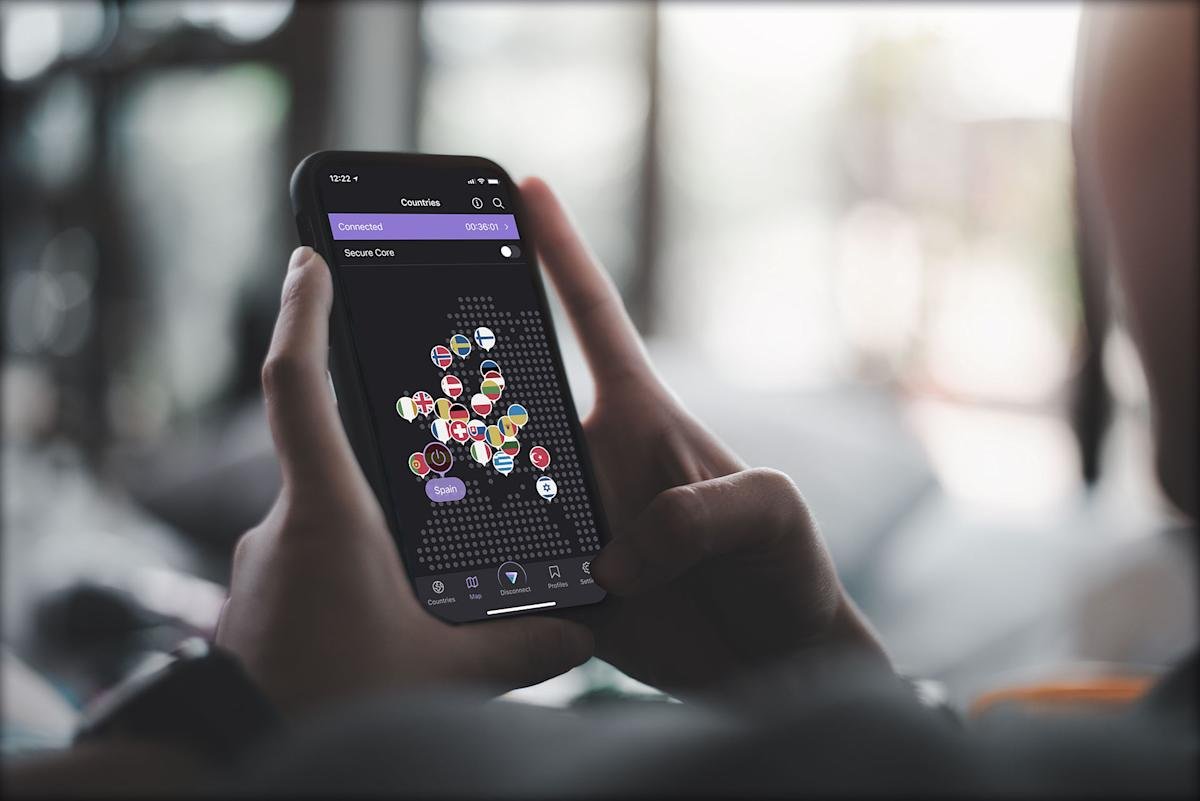
    Some of the best VPNs also provide a limited amount of free usage, so you can test their servers and functionality before investing in a subscription. For example, Proton VPN gives you unlimited data for free, though you’re restricted to five server locations.

    John P. Falcone for Engadget

    Installing a VPN

    Once you’ve decided which VPN to install, head to the App Store on your iPhone and search for it. Go through the download and installation process as you would with any other app.

    If you haven’t already purchased a VPN subscription, you can generally do so once you install the app. You’ll probably find it easier than going through the VPN’s website, as the best iOS VPNs have built startup flows specifically for the mobile user. Your Apple ID or biometric verification is all you need to complete the purchase.

    Using a VPN on your iPhone

    Now that you have the VPN installed on your iPhone and purchased the subscription, you’re ready to start using it. Although each app has a different layout, the basic functionality of every iPhone VPN is the same.

    There will be a list of all the available servers where you can choose the country (or city) you want to connect to. After that, just click the server’s name to connect, or press the “connect” button on the home screen.

    If you’re tech-savvy, you can tweak a few other settings, such as enabling a kill switch, choosing which protocol to use and turning on auto-connect. Otherwise, simply start using the internet as you normally would.

    Making sure your iPhone VPN works

    This screenshot was not taken from London. (whatismyipaddress.com)

    You’ll know your VPN is active when a rectangle with “VPN” appears by the network icons at the top-right of your home screen. If you want additional confirmation that your VPN is working, there are two tests you can run.

    To start, check your IP address at whatismyipaddress.com — first with the VPN off, then with it on. If the number (and the location on the map) doesn’t change, that means your VPN is not properly engaged.

    Another method is to set your VPN for another country and open your streaming platform of choice. If you notice that the content library differs from what you usually see, your VPN is correctly place-shifting your location. For instance, you’ll no longer find Friends on US Netflix, but (as of the time of this writing) it’s available for streaming when you set your location to the UK.

    What about corporate or school VPNs?

    It’s possible you’re part of an organization like a school or a company that has its own VPN infrastructure. In those cases, you may be given instructions on how to enable the VPN through the iPhone without the need for downloading a standalone app. Usually, the method invovles entering the Settings app on your iPhone, going to VPN & Device Management section under General, and clicking “Add VPN Configuration.” You’ll need details like the server address and remote ID, as well as your username and password, of course.

    TL;DR

    Installing a VPN on your iPhone is extremely simple. If you already have a VPN subscription, installing it on your phone gives you an additional level of privacy and geographic flexibility. For those new to VPNs, read our best VPNs article, purchase a subscription, install it, and start using a VPN on your iPhone.

    Share. Facebook Twitter Pinterest LinkedIn Reddit WhatsApp Telegram Email
    Previous ArticleUS and China agree to slash tariffs for 90 days
    Next Article Apple’s M4 MacBook Air is back on sale for $150 off
    TechAiVerse
    • Website

    Jonathan is a tech enthusiast and the mind behind Tech AI Verse. With a passion for artificial intelligence, consumer tech, and emerging innovations, he deliver clear, insightful content to keep readers informed. From cutting-edge gadgets to AI advancements and cryptocurrency trends, Jonathan breaks down complex topics to make technology accessible to all.

    Related Posts

    Newegg’s Ryzen 7 9850X3D combo bundle offers over $500 in savings on three key components, including 64GB DDR5 RAM

    February 25, 2026

    Tenku Pocket 8 micro laptop launched with 8-inch touch display and 8-core Intel Alder Lake-N CPU

    February 25, 2026

    Endorfy Signum M30 Air and M30 ARGB arrive as brand-new micro ATX PC towers

    February 25, 2026
    Leave A Reply Cancel Reply

    Top Posts

    Ping, You’ve Got Whale: AI detection system alerts ships of whales in their path

    April 22, 2025693 Views

    Lumo vs. Duck AI: Which AI is Better for Your Privacy?

    July 31, 2025279 Views

    6.7 Cummins Lifter Failure: What Years Are Affected (And Possible Fixes)

    April 14, 2025160 Views

    6 Best MagSafe Phone Grips (2025), Tested and Reviewed

    April 6, 2025122 Views
    Don't Miss
    Technology February 25, 2026

    Newegg’s Ryzen 7 9850X3D combo bundle offers over $500 in savings on three key components, including 64GB DDR5 RAM

    Newegg’s Ryzen 7 9850X3D combo bundle offers over $500 in savings on three key components,…

    Tenku Pocket 8 micro laptop launched with 8-inch touch display and 8-core Intel Alder Lake-N CPU

    Endorfy Signum M30 Air and M30 ARGB arrive as brand-new micro ATX PC towers

    Samsung Galaxy S26 series go official, 512GB base storage for Malaysia, from RM5199

    Stay In Touch
    • Facebook
    • Twitter
    • Pinterest
    • Instagram
    • YouTube
    • Vimeo

    Subscribe to Updates

    Get the latest creative news from SmartMag about art & design.

    About Us
    About Us

    Welcome to Tech AI Verse, your go-to destination for everything technology! We bring you the latest news, trends, and insights from the ever-evolving world of tech. Our coverage spans across global technology industry updates, artificial intelligence advancements, machine learning ethics, and automation innovations. Stay connected with us as we explore the limitless possibilities of technology!

    Facebook X (Twitter) Pinterest YouTube WhatsApp
    Our Picks

    Newegg’s Ryzen 7 9850X3D combo bundle offers over $500 in savings on three key components, including 64GB DDR5 RAM

    February 25, 20262 Views

    Tenku Pocket 8 micro laptop launched with 8-inch touch display and 8-core Intel Alder Lake-N CPU

    February 25, 20262 Views

    Endorfy Signum M30 Air and M30 ARGB arrive as brand-new micro ATX PC towers

    February 25, 20262 Views
    Most Popular

    7 Best Kids Bikes (2025): Mountain, Balance, Pedal, Coaster

    March 13, 20250 Views

    VTOMAN FlashSpeed 1500: Plenty Of Power For All Your Gear

    March 13, 20250 Views

    This new Roomba finally solves the big problem I have with robot vacuums

    March 13, 20250 Views
    © 2026 TechAiVerse. Designed by Divya Tech.
    • Home
    • About Us
    • Contact Us
    • Privacy Policy
    • Terms & Conditions

    Type above and press Enter to search. Press Esc to cancel.